


Transcript
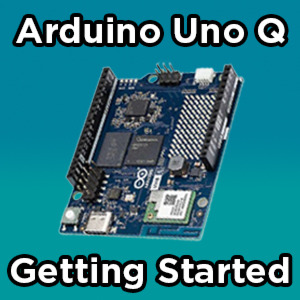
The Arduino Uno Q is a bit of a different dev board compared to previous entries in the Arduino lineup, with both a microcontroller running C++ and an ARM processor running Linux and things like Python code. Because of this, the process of setting up and using it is a little bit different. So, let's take a look at how to get going with it.
In your box, you'll find just an Uno Q. So, there are a few things that you're going to need to get coding. Now, the minimum you'll need to get going is a USB-C cable. This will let you plug it into your computer and go ahead and program it. But chances are you want to plug in some other USB devices like a microphone for audio input or a webcam to run some computer vision.
To do this, you'll need a USB-C hub. Most hubs will work, but just ensure that it supports power delivery or PD. Even more uses for this hub, the Uno Q gives you the option of booting into a Linux desktop environment on the actual device itself. If you wish to do so, you will need a USB hub for the keyboard, mouse, and HDMI output.
In terms of power supply for this thing, the recommendation is to use a USBC supply capable of providing 5 volts and up to 3 amps through PD. However, we found that the Uno Q was happy to just run off a regular USB wall charger capable of outputting 5 Volts and 2 amps. I would still opt for the proper PD supply if you have it though.
So, there are two ways that you can use the Uno Q, and both of them involve AppLab, the new IDE for the Uno Q. You can either program it with another computer with AppLab installed on it, or you can boot into Linux on the Uno Q itself and use AppLab in Linux.
We're going to go ahead and boot into the Uno Q and set it up on the device because it's a bit more fun. But if you install AppLab on your computer, plug the Uno Q in via USB to that computer, then select the board when it appears in AppLab, you should be able to follow along with these setup steps just fine.
To boot into the Uno Q, I'm going to go ahead and plug in our USB hub, connect our HDMI output to a monitor, and also go ahead and plug in a keyboard and mouse, and finally, our USB power supply. For this demo, I'm literally just using the power from one of my USB ports.
The UNO should then go ahead and boot up, and you may be prompted to set a password. Once you boot it into your desktop, AppLab should automatically open here, and you'll be prompted to enter your board credentials, as well as connect it to a Wi-Fi network. Your Uno Q will then check for any updates, and it should go through and automatically install them.
Now, if you run into any issues while updating as I have here, first of all, close and reopen App Lab, as that usually fixes it. If that didn't fix it, you might want to check to see if you have an Uno Q from the initial batch, the ones first released. These initial Uno Q's are unable to fully update themselves and need a manual reflashing, and then they're fine after that. We have a guide on reflashing your Uno Q, just in general if you want to check that out.
For most people though, this should be a smooth update process. It might take 5 to 15 minutes, depending on how much you've got to update, but once it's done, we can finally start using AppLab after we punch in the password again.
Now, you could happily use AppLab on the Uno Q itself and have sort of this all-in-one dev platform, but personally, I enjoy programming this from my desktop PC. So, we're going to go switch over to that. All righty, let's go ahead and open App Lab.
One of the cool things about the Uno Q is that you can program it over your local network. I have AppLab installed on my desktop and when I power on the Uno Q, if it's on the same local network as my desktop PC, it will show up here and we can program. This network connection method is the best way I found to actually use it. But that's just, you know, personal preference. Regardless of if you plug it directly into the computer with a USB or use AppLab in the Linux environment on the Uno Q itself, you're going to get pretty much the same AppLab experience. So, don't fret.
All righty. You have a few example apps here. App is just what App Lab calls a project. These example apps are really great and worth checking out as they show you a lot of what the Unu Q is actually capable of. More importantly, they show you how to actually make a project with App Lab. If we open up a demo, let's pick a blink led with UI. We can see our nice, you know, standard project structure.
On the left here, we have a readme file with, you know, all the important information about our project. We also have a YAML file, which you can ignore. AppLab automatically updates that for you. Then we also have a sketch folder here with a sketch in it. And this should look very familiar if you've ever touched any sort of Arduino code before. This is just, you know, your folder you put all your C++ code in to interact with the hardware side of things of the Uno Q.
And we have one of the things that sets the UNO Q apart, a Python file here under our Python folder. This is where we put, you know, all of our Python code to do the things on the Linux side of the Uno Q. In this code, we're also going to go ahead and set up bricks. Bricks are a bit of a unique thing to AppLab, and they're like a bit of a more advanced library that run on the Linux side of things.
This brick here, web UI, handles everything required to host a web page on our UNO Q. If we go check out the bricks section, we can see some of the things we have access to. Uh, here we have an audio generator. Uh, down here we have keyword spotting. Uh, how about some object detection? There's a bit of a mixed bag here of tasks that we can do and all these demo apps, you know, demonstrate them throughout.
Lastly, we have our assets folder. And this is where we put, you know, anything really extra else. In this demo, we're holding all the files needed by the web UI brick to, you know, create our site. So, let's go ahead and run that. And as you can see, we switch over to our console. And here we have kind of all the outputs, you know, in one neat location.
This is the output of our app. Here we have our serial monitor output, which is, you know, if you ever used Arduino IDE, it's the exact same thing. And then we also have our Python shell output as well. And after our app started, we get a little web page opened up. Now, we did a web page example because we found that a lot of the Uno Q apps will use some kind of web page interface. It's how it, you know, creates some sort of a visual things that you can interact with.
Now, turning an LED on and off with a web page is pretty cool, but there are much cooler things that the Uno Q can do. Just pulling from the examples page, how about some live object detection from a USB webcam? Or maybe an app that pulls local weather data from the web and displays it on the LED matrix? Or how about some keyword detection?
Hey frog. Hey smarthome. Hey Arduino. Hey Arduino. Regardless, there's just a heap of fun little examples to get going. And if you want to copy one of these and start modifying, you can do so very easily as well. I found that the examples are a good starting place to make your own projects as well.
And that is how to get started with the Uno Cube. All that's left is to, you know, go out and actually make a project. If you do make something cool with it or you need a hand with anything from this video, feel free to head on over to our community forum and post about it. Until next time though, happy making.
Comments


Makers love reviews as much as you do, please follow this link to review the products you have purchased.