
Related Content

Transcript
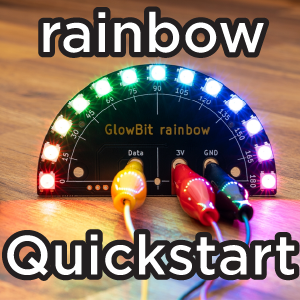
G'day! I'm going to show you how to get started with your Glow Bit Rainbow and a Micro Bit. We're going to make this little project from scratch. You can see there's something going on here when I roll the MicroBit from side to side - there's a corresponding LED that lights up on the rainbow. So, we'll wire this up and we'll write the code for it. Let's get started!
To follow along, of course, you'll need a Glow Bit Rainbow and a Micro Bit, a USB lead for power and programming, and something to connect the two together. I'm using three alligator clip leads today, but if you have banana leads that will work too.
I'll start by connecting the MicroBit to the Rainbow. The black lead can go from ground on the Rainbow to ground on the Micro Bit. The red lead can go from 3V (3 volts) on the Rainbow to 3V on the Micro Bit. Finally, the yellow lead will go from data on the Rainbow to this number zero on the MicroBit - that's pin number zero.
Double check your wiring and then connect the MicroBit to your computer using the USB lead and you should see it appear just like a flash drive does - and there's mine.
Okay, so to make sure everything works, let's upload a example script. If you're following along on Core Electronics, then scroll down to the example test program and click that link. This will take you to a preview of the program we're about to upload. To upload it to the Micro Bit, I'm going to go to Edit Code and that will open up Make Code. This is the programming environment for Micro Bit.
Since the program's already written, I'll just click download and in my downloads folder that program has appeared as a dot hex file. So, to put that on the Micro Bit, all I have to do is click that and drag that over the Micro Bit. By copying that file to the Micro Bit, the program will be uploaded. That's finished uploading and now your Rainbow should look like a...
Rainbow - This test code is driving the rainbow with red all the way through green, yellow, and blue, and all the way to purple on the other end. So, that's a good check to make sure that everything's wired up properly and we can upload code to our micro bit. I'll just cover that with my hands to show some color. It doesn't show up too well with all this light.
So, uploading a test program is all well and good. Let's now program the example I showed at the start of the video from scratch. So, if you remember, the rainbow is being used kind of like an angle display to display the tilt angle of the micro bit. So, depending on the orientation of the micro bit, we can light up the appropriate LED to kind of indicate what that angle is.
Let's start a new project. Click home on Make Code and that's the example that we just uploaded. I'm going to start a new project now and this will be. I'm going to call this the tilt-o-meter. So, this is what a blank project looks like in Make Code Micro Bit.
The first thing we need to do is import a library to drive the rainbow with. We can go to Advanced and Extensions from here. Search for Neopixel. Glow Bits are built using the same technology as Neopixel, so they are compatible and we can click this Neopixel library here. Great! If everything goes well, you should see a new entry called Near Pixel here. Click that.
This first block is what we are going to use to initialize the rainbow. This is going to allow us to declare it to the MicroBit so it knows what it is and knows how to drive it. I'll click, drag that out and put that into the start routine. We're connected to P0, that's the pin number zero that we connected to earlier with the yellow lead, and we have 13 LEDs. So, I'll just enter 13 there. The rest of this is okay.
I'm going to start the forever loop just by clearing the strip. This will make it easy to just.
I'm going to choose one LED to illuminate at a time since we're measuring the role of the micro bit. I'm going to grab that roll angle and put it into a variable. First, I'll create a variable and I'll call it roll. I'm going to set roll to the accelerometer roll angle of the micro bit. We can go to the input menu and it's not in here, it's probably under more. Here we go, we have rotation in degrees so pull that out and we can drop that into that block there. But we don't want pitch, we want to measure the roll. Pitch would be this way, rolled is this way. Now, roll angle is zero when the MicroBit is flat and it moves up to 90-degrees or negative 90-degrees depending on which way you tilt the micro bit.
We want to map negative 90-degrees to 90-degrees to some number of LED on the rainbow. So, what that means is at negative 90-degrees, perhaps we want one edge to be lit and then as we roll it, we want that LED to sweep across until we hit 90-degrees which is where the other LED will be lit. The map function is really useful for this. Under the math menu, we can grab the map function and this looks like a lot but it reads just like a story. So, I'm just going to pull it out here so we can talk about it.
What do we want to do? We want to map roll, so I'll go to my variables and pull out roll. We know that roll goes from negative 90-degrees to 90-degrees. So, the low is negative 90 and the high is 90. And we want to convert that to a value to the LED number that we want to illuminate. Now, since there are 13 LEDs here, we actually want to map to 0 to 12 because we start counting at 0. That's quite common in computing. So, lower 0 and higher is 12 gives us 13 unique LEDs.
I'm going to create a new variable because we're showing a gauge display. I'll call this gauge and we're going to set gauge to this mapped number that we just created.
Map will return a decimal point number. It could return 1.5 instead of just one, but since we only have 13 LEDs, not 13.5 LEDs, let's say we need to round gauge to the nearest number. So, we'll set gauge two and then in the math menu we can pull out the round function. We'll set gauge to the round of gauge.
Quick recap: we clear the strip and then read the rotation on the roll axis and call that variable roll. Then, we map that to some decimal point number between 0 and 12. But, because of course we have a whole number of LEDs, we then have to round to the nearest whole number to choose which LED to eliminate.
We know which LED we want to illuminate for a given role now. We just need to illuminate it. Let's have a look through the Neopixel library. I'm looking for a function that will just eliminate one pixel. Maybe under the more menu here we go: set pixel color at some number to some color. That looks like the one we want. So, zero would illuminate the zeroth or the very first LED, but we want to illuminate gauge. Gauge is the number of LED that we want to illuminate, so I'll pull that in and let's pick a nice purple color. That sounds nice. So, that would set the color, but we can set many colors on the strip at different times. They only display when you call the show function.
So, back in Neopixel, we'll use the strip show function. Okay, the moment of truth. Let's give it a go. I'll hit download our file. Downloads. I'll show that in downloads. There it is: our tiltometer. I'll drag that into the MicroBit device. Hey there, we have it. I have the MicroBit in one hand and as I rotate it to the side, I can cause that LED to move just with the angle that I choose to hold the micro bit. That's pretty cool. Interestingly, if we hold them together and rotate them at the same time, it's like we create a some kind of leveling device where this...
LEDs are always pointing up, which is pretty cool. If we turned the whole thing around, it would have some other interesting effect. So, there you have it: a quick project from scratch using a MicroBit and a globe it rainbow. This is quite a neat little starter project.
If you have any questions, the best place for technical stuff is in the comments for this article on Core Electronics or in the Core Electronics forums. If you found this guide useful, let us know. If you make something cool out of this little starter project, we'd love it if you would share it in the comments for this article.
Until next time, see you later! You can see there's some kind of relationship here between the roll angle of the micro bit. I just hit the reset button - oops! I'd be excited to see what you come up with. If you have any fun projects that you arrive at in the end, I'd love you to share them.

Makers love reviews as much as you do, please follow this link to review the products you have purchased.