
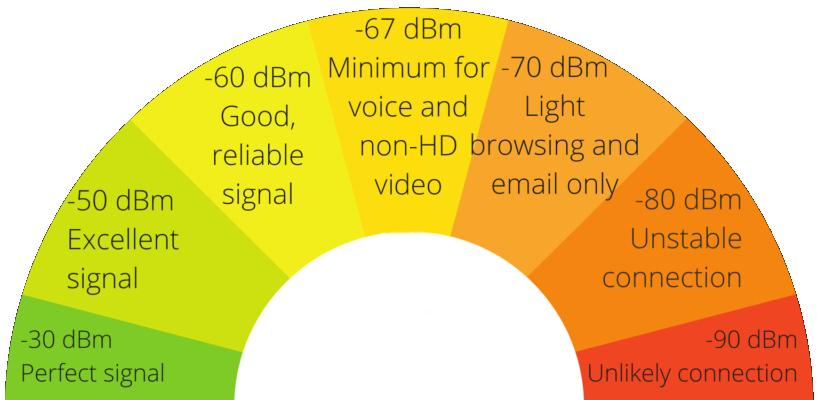
This project started because I wanted to know the signal strength of the Wifi in various places around my house. I had set up a Pi Zero as a simple watering system controller. It would switch a solenoid on and off based on a 7 day schedule; which I could setup via a web page from my desktop PC. The place I chose for the Pi Zero was not the best as it was on the border of stable Wifi (-79dBm). Having a portable Pi Zero that would display the signal strength of wherever it was placed, seem like a good idea.
On GitHub I found iwlistparse.py. https://gist.github.com/dubkov/79738a7a15fcb47809bc
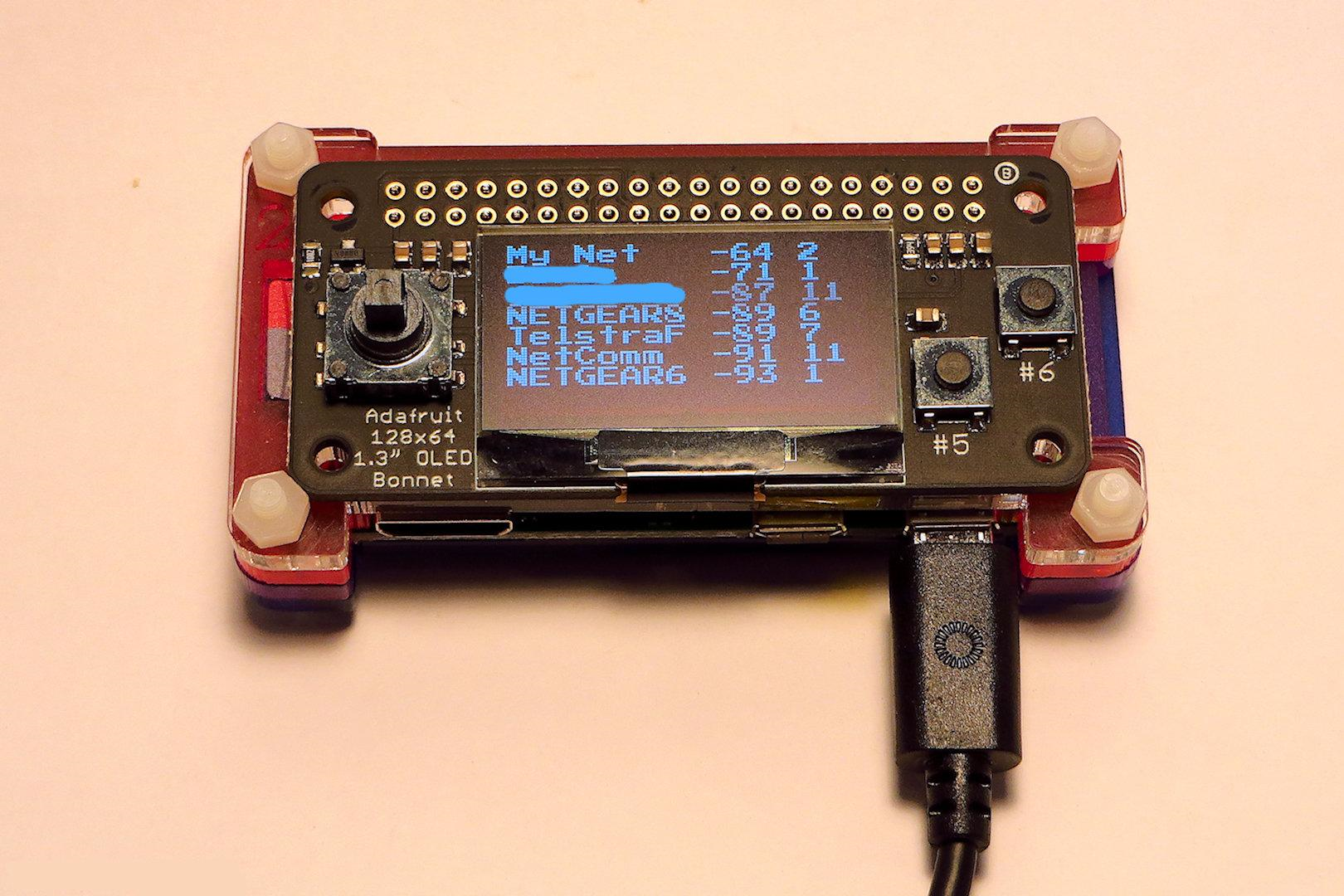
Python code that parses the text output of the command iwlist wlan0 scan into columns and displays them on the HDMI screen. Using this code I was able to see all the networks around me and their signal information in a neat column display.
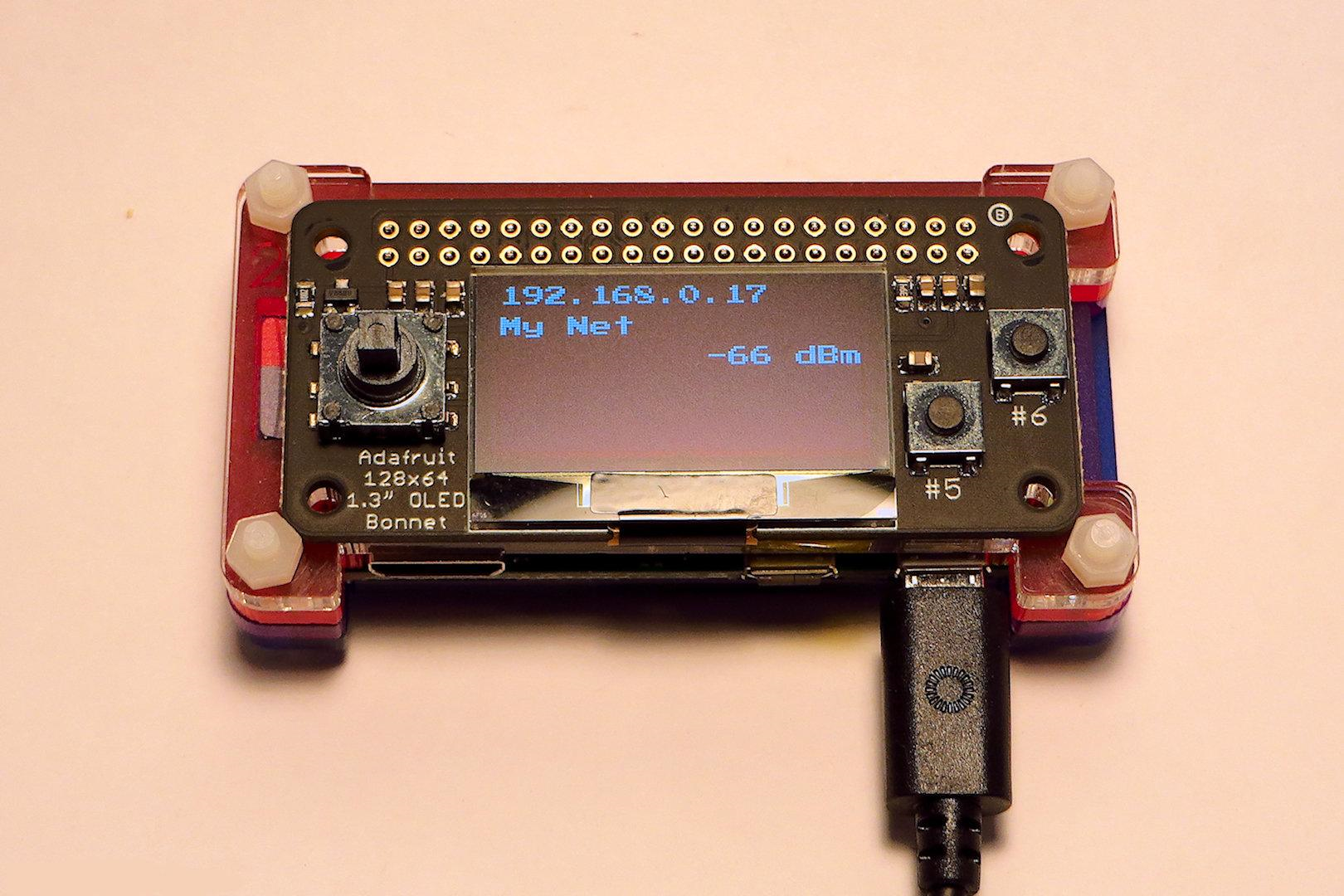
I then used this concept to parse the text output of command iwconfig wlan0. Which shows the signal strength of the locally connected Wifi. Another command, hostname -I, allowed the display of the IP address assigned to the Pi Zero by the router.
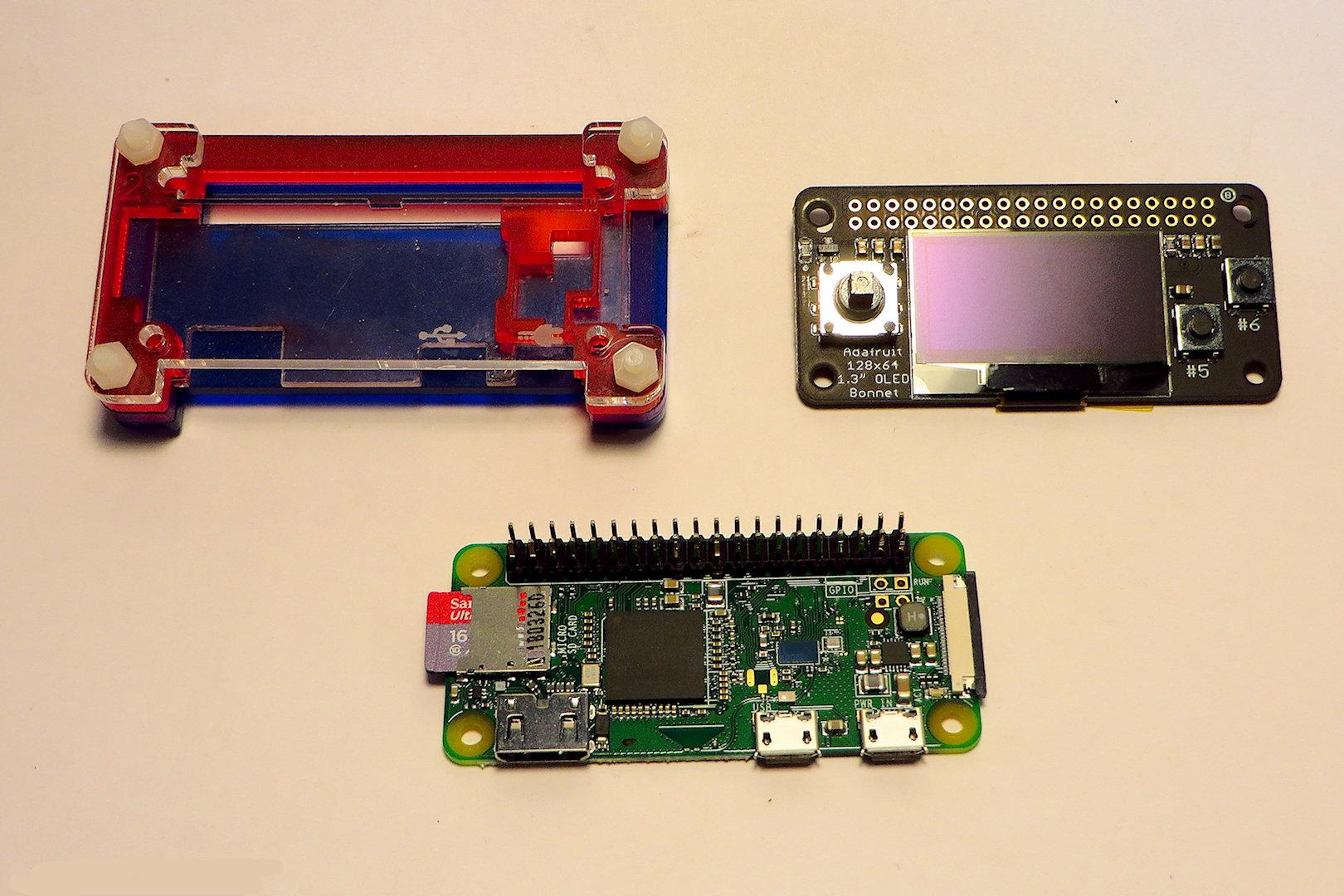
Now I had all the information; I just needed a way to display it on the Pi Zero. The Adafruit 128x64 OLED Bonnet proved a good solution. Although pricey, it has a reasonable size display, a number of push buttons and fits neatly on top of a Pimoroni Pibow Zero W Case.
Parts
- Raspberry Pi Zero WH (Wireless with Soldered Headers)
- Adafruit 128x64 OLED Bonnet for Raspberry Pi
- Pimoroni Pibow Zero W Case or you could use the Slim Case by Core Electronics
Software
The Adafruit Python library makes using the OLED display very easy. I changed from the default font and used PressStart2P.ttf; loaded from http://www.dafont.com/bitmap.php; it seemed to be the best. In all, I tried about 20 different fonts from this site. (this font also worked good for the Adafruit 128x32 display, the screen on this one is very small)
The screen area displays the font in an 8x8 format, so we have 16 characters across and 8 lines down. I experimented with smaller fonts but it became too hard to read. When showing all Wifi only the first 8 characters of the SSID are displayed, then the signal strength, then channel number. I thought channel display would be good, as most routers are set to channel 11; and it is best to switch to a less busy channel if you can find one. Also, only the top 8 Wifi signals are shown.
The Pi Zero is set up to connect to the local house Wifi or to the Wifi hotspot of my phone.
When the Python code was complete the following line was added to :-
/etc/rc.local sudo python wifi64-01.py &
Not the most elegant way to start a turnkey system, but it works.
The ampersand symbol on the end spawns it as a separate process, allowing rc.local to complete.
Note it uses Python, not Python3. The original iwlistparse.py was written in 2010.
The final product uses buttons A,B & C of the OLED Bonnet to switch between; showing all Wifi in the area, only the connected Wifi or blanking the screen. Showing all Wifi, is similar to what a phone does, but the Pi gives actual figures of signal strength rather than just 3 small bars.

Conclusion
The cost of this project is not cheap. The setup will be used to better position the Wifi router so signal strength is more even across the house. And to map the Wifi distribution around the house. Then the parts will most likely be used for another project.
The experience gained developing the Python code and using the OLED Bonnet will stand in good stead for future projects.
The Code
Python code
#####################################################################
#!/usr/bin/env python
#
# wifi64-01.py
# James Grigg - 16 Mar 2019
# Display network cells on 128x64 OLED
# Press buttons to change or clear display
# 16x8 display, font = PressStart2P.ttf (8 px font)
#
# Adapted from iwlistparse.py Python code from GitHub
#
#####################################################################

import sys
import time
import subprocess

import RPi.GPIO as GPIO

import Adafruit_GPIO.SPI as SPI
import Adafruit_SSD1306

from PIL import Image
from PIL import ImageDraw
from PIL import ImageFont

#####################################################################
RST = None 	# no reset on OLED 128x64
# Note the following are only used with SPI:
DC = 23
SPI_PORT = 0
SPI_DEVICE = 0

# GPIO pin definitions
L_pin = 27
R_pin = 23
C_pin = 4
U_pin = 17
D_pin = 22

A_pin = 5
B_pin = 6

GPIO.setmode(GPIO.BCM)
GPIO.setup(A_pin, GPIO.IN, pull_up_down=GPIO.PUD_UP)
GPIO.setup(B_pin, GPIO.IN, pull_up_down=GPIO.PUD_UP)
GPIO.setup(L_pin, GPIO.IN, pull_up_down=GPIO.PUD_UP)
GPIO.setup(U_pin, GPIO.IN, pull_up_down=GPIO.PUD_UP)
GPIO.setup(R_pin, GPIO.IN, pull_up_down=GPIO.PUD_UP)
GPIO.setup(D_pin, GPIO.IN, pull_up_down=GPIO.PUD_UP)
GPIO.setup(C_pin, GPIO.IN, pull_up_down=GPIO.PUD_UP)


# Initialize library.
disp = Adafruit_SSD1306.SSD1306_128_64(rst=RST)
disp.begin()
disp.clear()
disp.display()

# Create blank image for drawing.
width = disp.width 	# 128 pixels
height = disp.height 	#  64 pixels
image = Image.new('1', (width,height))
draw = ImageDraw.Draw(image)

font = ImageFont.truetype('PressStart2P.ttf', 8)

top = 0
left = 0
right = 127
bottom = 31

interface = "wlan0"

#####################################################################
# menu display
#####################################################################
def draw_menu():
    draw.rectangle((0,0,width-1,height-1), outline=1, fill=0)
    draw.text((left, top+0),  "                ",  font=font, fill=255)
    draw.text((left, top+8),  "  -- Ready --   ",  font=font, fill=255)
    draw.text((left, top+16), "                ",  font=font, fill=255)
    draw.text((left, top+24), " Press:         ",  font=font, fill=255)
    draw.text((left, top+32), "  A = List local",  font=font, fill=255)
    draw.text((left, top+40), "  B = Connected ",  font=font, fill=255)
    draw.text((left, top+48), "  C = Clear     ",  font=font, fill=255)
    draw.text((left, top+56), "                ",  font=font, fill=255)
    disp.image(image)
    disp.display()
    return

#####################################################################
#get the information related to the fields
#####################################################################
def get_name(cell):
    nam = matching_line(cell,"ESSID:")[1:-1]
    return nam[0:8]

def get_quality(cell):
    quality = matching_line(cell,"Quality=").split()[0].split('/')
    return str(int(round(float(quality[0]) / float(quality[1]) * 100))).rjust(3) + " %"

def get_channel(cell):
    return matching_line(cell,"Channel:")

def get_signal_level(cell):
    sig = matching_line(cell,"Quality=").split("Signal level=")[1]
    return sig[0:3]

    return enc

#####################################################################
#look up dictionary rules
#####################################################################
rules={"Name":get_name,
       "Quality":get_quality,
       "Channel":get_channel,
       "Signal":get_signal_level
       }
#####################################################################
#Sort cell information, removes duplicate entries
#####################################################################
def sort_cells(cells):
    sortby = "Quality"
    reverse = True
    cells.sort(None, lambda el:el[sortby], reverse)

#####################################################################
#table output
#####################################################################
columns=["Name","Signal","Channel"]

#####################################################################
#Returns the first matching line in a list of lines. If the first part of line
#matches keyword, returns the end of that line. Otherwise returns None
#####################################################################
def matching_line(lines, keyword):
    for line in lines:
        matching=match(line,keyword)
        if matching!=None:
            return matching
    return None

def match(line,keyword):
    line=line.lstrip()
    length=len(keyword)
    if line[:length] == keyword:
        return line[length:]
    else:
        return None

#####################################################################
#Applies the dictionary rules to the bunch of text describing a cell and
#returns the corresponding dictionary entry
#####################################################################
def parse_cell(cell):
    parsed_cell={}
    for key in rules:
        rule=rules[key]
        parsed_cell.update({key:rule(cell)})
    return parsed_cell

#####################################################################
#get cell information in text line format for OLED display
#####################################################################
def cells_Text_Line(cells):

    linenum = 0
    temp = ""
    table=[]
    justified_table=[]		#[] = ordered and changable list
    list={}			#{}  = unordered unindexed list

    for cell in cells:
        cell_properties=[]
        for column in columns:
            cell_properties.append(cell[column])
        table.append(cell_properties)

    widths=map(max,map(lambda l:map(len,l),zip(*table)))

    for line in table:
        justified_line=[]
        for i,el in enumerate(line):
            justified_line.append(el.ljust(widths[i]))
        justified_table.append(justified_line)

    for line in justified_table:
        for el in line:
            temp = temp + el + " "	#build text line string for list elements
        list[linenum] = temp		#save text line
        linenum = linenum + 1		#point to next line
        temp=""				#clear temporary buffer
    return list

################################################################
# check for keypressed
################################################################
def checkKey():
    if not GPIO.input(A_pin):		#0 = key press
       return ("A")
    elif not GPIO.input(B_pin):
       return ("B")
    elif not GPIO.input(C_pin):
       return ("C")
    else:
        return("None")

################################################################
# show connected information
################################################################
def listconnected():

  key = False
  while not key:
    i = 0
    lines = {}
    IP = ""
    SSID = ""
    Signal = ""
    draw.rectangle((0,0,width-1,height-1), outline=0, fill=0)

    cmd = "hostname -I | cut -d\' \' -f1"
    IP = subprocess.check_output(cmd, shell = True )
    if IP == "\n":
        draw.text((left, top), "not connected", font=font, fill=255)
    else:
        proc = subprocess.Popen(["iwconfig", interface],stdout=subprocess.PIPE, universal_newlines=True)
        out, err = proc.communicate()
        for line in out.split("\n"):
            lines[i] = str(line)
            i = i + 1
        SSID = lines[0][30:].rstrip()[:-1]          #line 0 has SSID
        Signal = lines[6][43:].rstrip()             #line 6 has signal strength
        draw.text((left, top), str(IP), font=font, fill=255)
        draw.text((left, top+12), str(SSID), font=font, fill=255)
        draw.text((left+73, top+24), str(Signal), font=font, fill=255)

    disp.image(image)
    disp.display()
    if not checkKey() == "None":
      key = True

  return

##################################################################
# list up to 8 detected wifi networks SSID,Signal Strength,channel
##################################################################
def listall():

  key = False
  while not key:
    numCells = 0
    cells = [[]]
    parsed_cells = []
    textlines = {}

#get the network cell list in raw format
    proc = subprocess.Popen(["iwlist", interface, "scan"],stdout=subprocess.PIPE, universal_newlines=True)
    out, err = proc.communicate()

#seperate the raw list into individual cell lists
    for line in out.split("\n"):
        cell_line = match(line,"Cell ")
        if cell_line != None:
            cells.append([])
            line = cell_line[-27:]
            numCells = numCells + 1
        cells[-1].append(line.rstrip())
    cells=cells[1:]
#parse the cells into the desired columns
    for cell in cells:
        parsed_cells.append(parse_cell(cell))

#sort and format the cell information
    sort_cells(parsed_cells)
    textlines = cells_Text_Line(parsed_cells)   #format cell information as text line for OLED

# Write lines of text to data image OLED display, first 8 lines only
    draw.rectangle((0,0,width-1,height-1), outline=0, fill=0)   #clear image for new output, otherwise it overwrites
    numLine = 0
    while numLine < 7:
        if numLine < numCells:
            draw.text((left, top+numLine*8), str(textlines[numLine]),  font=font, fill=255)
        numLine = numLine + 1

    disp.image(image)
    disp.display()
    if not checkKey() == "None":
      key = True
  return

################################################################
#  Main loop - repeat until stdin interrupt then exit
################################################################
try:
    draw_menu()
    while True:
        if checkKey() == "A":
            listall()
        elif checkKey() == "B":
            listconnected()
        elif checkKey() == "C":
            disp.clear()
            disp.display()

except KeyboardInterrupt:	#crtl-C pressed on stdin
    disp.clear()		#leave display blank
    disp.display()
    GPIO.cleanup()		#GPIO pin clear

################################################################
################################################################
################################################################

