
Welcome to the C Programming Workshop for Makers! Here you'll be able to follow along with our series of easily digestible videos that cover everything you'll need to know to on your way with C programming and start making awesome projects. As you progress through the workshops, you'll find helpful material next to each video - these could be code snippets, diagrams, reference tables, or links to other resources. My name is Josh, and I'm a computer scientist and maker who has been writing with C and related languages for years, so let me be your guide into the wonderful world of lower level coding.
To follow along, you'll just need a computer (I'll be explaining for Windows and Raspberry Pi), an Internet connection and a desire to learn some amazing skills.
Course outline:
- Chapter 1 - What is it and how do I set it up?
- What is C?
- Setting up the development environment
- Hello World
- Breaking down the Hello World
- Chapter 2 - C Language structure
- Types
- Variables and constants
- Expressions
- Scopes
- Chapter 3 - Control structures
- Flowchart notation
- Decisions
- Loops
- Some practical examples of everything so far
- - Making our own functions and types
- Functions
- Types
- Combining these
- Chapter 5 - Arrays and pointers
- What is an array?
- Dimensions
- Strings
- Pointers
- Game of Life
- Chapter 6 - IO
- Command line
- Files
- Simple calculator
- Chapter 7 - More advanced concepts
- Multiple code files and the compiler
- Constants
- Memory management
- Recursion
- The preprocessor
- What to do when it goes wrong
- Some amazing feats with C
If you run into any issues throughout this workshop, then please reach out to us on our forum. We're full-time makers and are here to help.
Let's get started!
CHAPTER 1: WHAT IS IT AND HOW DO I SET IT UP?
1.0 CHAPTER OVERVIEW
In Chapter 1 we cover a basic rundown of what the C language is, and how to set up your computer so you can actually start writing it. We'll then go over the first program anybody writes when they learn a new programming language, Hello World. We'll then dissect this and talk about the different elements that make up all C programs.
1.1 WHAT IS C?
In this section, we discuss what C is, how it came to be, and how it compares to the other common programming languages Arduino and Python.
C vs C++ vs C#
Even though these languages have similar names, they're vastly different.
- C is a low-level procedural language that is compiled into small binaries, generally with the highest performance, which makes it more suitable for direct hardware control or where maximum performance is desirable. This comes at the cost of requiring the programmer to be careful as there are few safeguards. With great power comes great responsibility.
- C++ is what's called an object-oriented language, which is a way to manipulate tightly related data and functions in blocks called objects, such as players in a game each having their own health, equipment and stats, rather than trying to maintain arrays of everybody's data. As such, C++ is commonly used in game programming and server applications, where they can benefit from a mid-level language that still has a high performance but is filled with extra features that make programming easier (and the extra file size this causes is not such an issue).
- C# was created by Microsoft to be a Java competitor and is therefore targeted to the .NET runtime on the Windows platform. It is also object-oriented like C++ but has many safeguards added to remove the risk of breaking something in environments like web and desktop applications, where it is most often used. Having all these extra features does mean that the performance is lower than the other languages, but in the applications that it is used, this is not so noticeable.
Language levels
Shown below are examples of the same basic function written in some of the languages mentioned in the video, and as you can see the further down you go, the harder it is to write and easily understand.
Python
for a in range(1, 10)
  print(a)
C#
using System;

public class TestProgram
{
	public static void Main()
	{
		int a = 1;
		int b = 10;
		while (a <= b)
		{
			Console.WriteLine(a);
			a++;
		}
	}
}
Arduino
void setup() {
  Serial.begin(9600);
  int a = 1;
  int b = 10;
  while (a <= b)
  {
    Serial.println(a);
    a++;
  }
}

void loop() {
}
C++
#include <iostream>

int main()
{
    int a = 1;
    int b = 10;
    while (a <= b)
    {
        std::cout << a << endl;
        a++;
    }
    return 0;
}
C
#include <stdio.h>

int main(void)
{
  int a = 1;
  int b = 10;
  while (a <= b)
  {
    printf("%d\n", a);
    a++;
  }
  return 0;
}
Assembly
.LC0:
  .string "%d\n"
main:
  push rbp
  mov rbp, rsp
  sub rsp, 16
  mov DWORD PTR [rbp-4], 1
  mov DWORD PTR [rbp-8], 10
  jmp .L2
.L3:
  mov eax, DWORD PTR [rbp-4]
  mov esi, eax
  mov edi, OFFSET FLAT:.LC0
  mov eax, 0
  call printf
  add DWORD PTR [rbp-4], 1
.L2:
  mov eax, DWORD PTR [rbp-4]
  cmp eax, DWORD PTR [rbp-8]
  jl .L3
  mov eax, 0
  leave
  ret
Machine Code (AKA Binary)
ff 25 12 0c 20 68 00 00
00 00 e9 e0 ff ff ff 55
48 89 e5 48 83 ec 10 c7
45 fc 01 00 c7 45 f8 0a
00 eb 18 8b 45 fc 89 c6
bf d4 05 40 00 b8 00 00
00 00 e8 cd fe ff ff 83
45 fc 01 8b 45 fc 3b 45
f8 7c e0 b8 00 00 00 00
c9 c3 66 2e 0f 1f 84
1.2 SETTING UP THE DEVELOPMENT ENVIRONMENT
The software that I'll be using during this course is Atom (with the gpp-compiler package installed) and MinGW on Windows. I'll be showing you how to set up and use these, as well as how to compile your programs on a Raspberry Pi if you want to (HINT: everything you need is already installed).
1.3 HELLO WORLD
The first program that anybody learning a new programming language is called Hello World, which simply prints that to a console window. It's also useful to check that your set-up is working correctly.
The code used in this video:
/*
  My first program prints "Hello World!"
  to the command prompt and then exits
*/

#include <stdio.h> // printf is part of this library

int main (void)
{
  printf("Hello World!\n"); // prints to the screen
  return 0; // ends program and sends a 0 back to the command promt
}
1.4 BREAKING DOWN THE HELLO WORLD
Here we'll dissect the Hello World program from the previous section, and explain the different parts of what makes up every C program and what they mean.
CHAPTER 2: C LANGUAGE STRUCTURE
2.0 CHAPTER OVERVIEW
Chapter 2 goes more in depth with the structure of C programs, including how to store and manipulate data, as well as a few tricks you can use in your projects.
2.1 TYPES
In this section, we discuss the different types of data you can have and the best ways to store them in your programs.
Listed below are the most common data types you will come across, as well as what you can store in them - in this case, using the MinGW compiler on a Windows PC, other platforms and compilers may change the sizes slightly (the Raspberry Pi does this!).
| Type | Size | Range |
| Integer types | ||
| char | 8 bits (1 byte) | -128 to 127 (designed to store ASCII characters) |
| unsigned char | 8 bits (1 byte) | 0 to 255 |
| short | 16 bits (2 bytes) | -32,768 to 32,767 |
| unsigned short | 16 bits (2 bytes) | 0 to 65,535 |
| int | 32 bits (4 bytes) | -2,147,483,648 to 2,147,483,647 |
| unsigned int | 32 bits (4 bytes) | 0 to 4,294,967,295 |
| long | 32 bits (4 bytes) | -2,147,483,648 to 2,147,483,647 |
| unsigned long | 32 bits (4 bytes) | 0 to 4,294,967,295 |
| long long | 64 bits (8 bytes) | -9,223,372,036,854,775,808 to 9,223,372,036,854,775,807 |
| unsigned long long | 64 bits (8 bytes) | 0 to 18,446,744,073,709,551,615 |
| Floating point types | ||
| float | 32 bits (4 bytes) | 1.17549e-038 to 3.40282e+038 |
| double | 64 bits (8 bytes) | 2.22507e-308 to 1.79769e+308 |
| long double | 96 bits (12 bytes) | 3.3621e-4932 to 1.18973e+4932 |
If you want to see if your platform is different, here is the code to recreate the table above. Don't worry too much about what's in the code (everything will be explained in due course), just copy it to a .c file on your platform and run it.
/*
  Prints a table of the data types and their sizes on this system
*/

#include <float.h>
#include <limits.h>
#include <stdio.h>

/*
  this is because Windows doesn't support printing numbers >4 bytes easily
  MinGW actually implements the Linux version as well, so we'll use it instead
*/
#ifdef __MINGW32__
  #define printf __mingw_printf
#endif

int main(void)
{
  printf("\tType\t\t\tSize\t\t\tRange\n");
  printf("\t\t\t\tInteger types\n");
  printf("char\t\t\t%d bits (%d bytes)\t%hhd to %hhd\n", sizeof(char) * CHAR_BIT, sizeof(char), CHAR_MIN, CHAR_MAX);
  printf("unsigned char\t\t%d bits (%d bytes)\t%hhu to %hhu\n", sizeof(unsigned char) * CHAR_BIT, sizeof(unsigned char), 0, UCHAR_MAX);
  printf("short\t\t\t%d bits (%d bytes)\t%hd to %hd\n", sizeof(short) * CHAR_BIT, sizeof(short), SHRT_MIN, SHRT_MAX);
  printf("unsigned short\t\t%d bits (%d bytes)\t%hu to %hu\n", sizeof(unsigned short) * CHAR_BIT, sizeof(unsigned short), 0, USHRT_MAX);
  printf("int\t\t\t%d bits (%d bytes)\t%d to %d\n", sizeof(int) * CHAR_BIT, sizeof(int), INT_MIN, INT_MAX);
  printf("unsigned int\t\t%d bits (%d bytes)\t%u to %u\n", sizeof(unsigned int) * CHAR_BIT, sizeof(unsigned int), 0, UINT_MAX);
  printf("long\t\t\t%d bits (%d bytes)\t%ld to %ld\n", sizeof(long) * CHAR_BIT, sizeof(long), LONG_MIN, LONG_MAX);
  printf("unsigned long\t\t%d bits (%d bytes)\t%lu to %lu\n", sizeof(unsigned long) * CHAR_BIT, sizeof(unsigned long), 0UL, ULONG_MAX);
  printf("long long\t\t%d bits (%d bytes)\t%lld to %lld\n", sizeof(long long) * CHAR_BIT, sizeof(long long), LLONG_MIN, LLONG_MAX);
  printf("unsigned long long\t%d bits (%d bytes)\t%llu to %llu\n", sizeof(unsigned long long) * CHAR_BIT, sizeof(unsigned long long), 0ULL, ULLONG_MAX);
  printf("\t\t\t\tFloating point types\n");
  printf("float\t\t\t%d bits (%d bytes)\t%g to %g\n", sizeof(float) * CHAR_BIT, sizeof(float), FLT_MIN, FLT_MAX);
  printf("double\t\t\t%d bits (%d bytes)\t%g to %g\n", sizeof(double) * CHAR_BIT, sizeof(double), DBL_MIN, DBL_MAX);
  printf("long double\t\t%d bits (%d bytes)\t%Lg to %Lg\n", sizeof(long double) * CHAR_BIT, sizeof(long double), LDBL_MIN, LDBL_MAX);
  return 0;
}
2.2 VARIABLES AND CONSTANTS
Here I'll show you how you can store and retrieve data in variables, as well as how to use constant values that won't change but will help with code readability and reduce human error.
Here is the code used in this video
/*
  Code used to give examples of how to use variables and constants
*/

#include <math.h>
#include <stdio.h>

#define CONSTANT 42

int main(void)
{
  int a; // not setting an initial value
  printf("a default value: %d\n", a);

  int b = 0; // setting an initial value
  printf("b value: %d\n", b);

  b = 2; // changing a pre-existing variable
  printf("b new value: %d\n", b);

  int c = CONSTANT + 1; // using a constant value
  printf("c value: %d\n", c);

  double d = 100.7;
  printf("d value: %f\n", d);

  double e = 1.007e-2; // scientific notation
  printf("e value: %f\n", e);

  short f = -1; // signed value into signed variable
  printf("f value: %hd\n", f);

  unsigned short g = -1; // signed value into unsigned variable
  printf("g value: %hu\n", g);

  int h = 0x2a; // hex notation
  printf("h value: %d\n", h);

  int i = 052; // octal notation
  printf("i value: %d\n", i);

  float j = 1.79769e+308; // putting a value too big into a float variable
  printf("j value: %f\n", j);

  double k = sqrt(2); // getting the return value of a function
  printf("k value: %f\n", k);

  return 0;
}
2.3 EXPRESSIONS
This lesson will follow on from the previous one, showing you how to manipulate the data you've stored in various ways, allowing you to do more than just maths. I'll also go over some pitfalls you may come across during your time coding, and how to fix them.
Operators
| Operator | Example | Meaning |
| Arithmetic | ||
| = | a = b | Assignment |
| + | a + b | Addition |
| - | a - b | Subtraction |
| * | a * b | Multiplication |
| / | a / b | Division |
| % | a % b | Modulo |
| + | +a | Positive |
| - | -a | Negative |
| ++ | ++a | Prefix increment |
| ++ | a++ | Postfix increment |
| -- | --a | Prefix decrement |
| -- | a-- | Postfix decrement |
| Comparison | ||
| == | a == b | Equal to |
| != | a != b | Not equal to |
| < | a < b | Less than |
| <= | a <= b | Less than or equal to |
| > | a > b | Greater than |
| >= | a >= b | Greater than or equal to |
| Logical | ||
| ! | !a | NOT a |
| && | a && b | a AND b |
| || | a || b | a OR b |
| Bitwise | ||
| ~ | ~a | Complement a |
| & | a & b | a AND b |
| | | a | b | a OR b |
| ^ | a ^ b | a XOR b |
| << | a << b | a left shifted by b bits |
| >> | a >> b | a right shifted by b bits |
| Compound assignment | ||
| += | a += b | a = a + b |
| -+ | a -= b | a = a - b |
| *= | a *= b | a = a * b |
| /= | a /= b | a = a / b |
| %= | a %= b | a = a % b |
| &= | a &= b | a = a & b |
| |= | a |= b | a = a | b |
| ^= | a ^= b | a = a ^ b |
| <<= | a <<= b | a = a << b |
| >>= | a >>= b | a = a >> b |
| Others | ||
| [ ] | a[b] | element b of array a |
| & | &a | reference (get the memory address of) a |
| * | *a | dereference (get the data at memory address in) a |
| . | a.b | member b of struct a |
| -> | a->b | member b of struct at the memory address in a |
| ( ) | (a + b) | used to group expressions for higher precedence |
| ( ) | a(b) | call function a with parameter b |
| , | a(b, c) | used to separate parameters |
| ? : | a ? b : c | ternary statement; if a is true, b, otherwise c |
| sizeof (type) | sizeof (int) | the number of char-sized units this type occupies |
| sizeof (variable) | sizeof (a) | the number of char-sized units this variable occupies |
| (type) value | (double) a | temporarily turn (cast) value into a 'type' |
A quick note on prefix vs postfix
In most cases, choosing whether to use prefix or postfix won't make a difference (the most common use is just incrementing or decrementing a variable). But when combined with other statements to make more powerful or compact code, which one you choose to use does matter. For example, take the following code snippet:
int i = 0;
printf("%d\n", i++);
printf("%d\n", ++i);
When run, what prints out is:
0
2
This is because, in the case of the first printf, the value of i is taken (0) and printed, then incremented (from 0 to 1). In the 2nd printf, the value is incremented (from 1 to 2), then taken (2) and printed. Similar behaviour can be seen for decrement.
A problem with division of integer types
Because integer types can't hold fractions, if you did something like 2 / 5, the answer would be 2 and not 2.5. If the extra 0.5 is important to you (such as being part of a larger expression), you need to change at least 1 of the values in the expression to any of the floating point types, either by adding a .0 to the end or explicitly telling the compiler to treat a value as a specific type (this is called type casting) by putting the desired type in parentheses before the value. This will also promote any other types in the expression that haven't already been evaluated to the most precise type. Ways you could do this would be:
2.0 / 5
2 / 5.0
(double) 2 / 5
2 / (double) 5
(double) 2 / (double) 5
Precedence
Higher rows get evaluated first, and all operators in the same row have the same precedence and are evaluated in the order shown in the right-hand column.
| Operators | Descriptions | Evaluation order |
|
++ -- ( ) ( ) [ ] . -> |
Postfix increment Postfix decrement Precedence increase Function call Array element Struct member Struct member |
Left to right |
|
++ -- + - ! ~ (type) & * sizeof |
Prefix increment Prefix decrement Positive Negative Logical NOT Bitwise complement Type cast Reference Dereference Size of value |
Right to left |
|
* / % |
Multiplication Division Modulo |
Left to right |
|
+ - |
Addition Subtraction |
Left to right |
|
<< >> |
Bitwise left shift Bitwise right shift |
Left to right |
|
< <= > >= |
Less than Less than or equal Greater than Greater than or equal |
Left to right |
|
== != |
Equal to Not equal to |
Left to right |
| & | Bitwise AND | Left to right |
| ^ | Bitwise XOR | Left to right |
| | | Bitwise OR | Left to right |
| && | Logical AND | Left to right |
| || | Logical OR | Left to right |
| ? : | Ternary statement | Left to right |
|
= += -= *= /+ %= <<= >>= &= ^= |- |
Assignment Addition assignment Subtraction assignment Multiplication assignment Division assignment Modulo assignment Bitwise left shift assignment Bitwise right shift assignment Bitwise AND assignment Bitwise XOR assignment Bitwise OR assignment |
Right to left |
| , | Comma | Left to right |
Here is an example of the evaluation order of a maths statement:

2.4 SCOPES
This lesson explains what scope is, and how you can use it to your advantage in your projects.
Here is the code that was used in the video:
/*
  Program used to illustrate scope
*/

#include <stdio.h>

/*
  global variables are created outside a function
  and are available anywhere in the program
*/
int globalVariable = 0;
int anotherGlobalVariable = 1;

// function prototype (don't worry, this will be explained in a later chapter)
int otherFunction(int globalVariable, int otherParameter);

int main(void)
{
  // local variables are only available inside the function they are created in
  int localVariable = 2;
  int localVariable2 = 3;
  printf("localVariable value: %d\n", localVariable);

  // global variables can be accessed from anywhere in the same program
  printf("globalVariable value: %d\n", globalVariable);
  // global variables can also be changed from anywhere, so be careful
  globalVariable = 4;
  printf("globalVariable new value: %d\n", globalVariable);

  /*
    local variables that have the same name as a global variable are used
    instead of the global one
  */
  int anotherGlobalVariable = 5;
  printf("anotherGlobalVariable value: %d\n", anotherGlobalVariable);

  printf("\n");

  // run other function
  otherFunction(localVariable, localVariable2);

  printf("\n");

  // run function again to show static variable changes
  otherFunction(localVariable, localVariable2);

  printf("\n");

  // checking which variables got changed
  printf("final globalVariable value: %d\n", globalVariable);
  printf("final anotherGlobalVariable value: %d\n", anotherGlobalVariable);
  printf("final localVariable value: %d\n", localVariable);
  printf("final localVariable2 value: %d\n", localVariable2);

  return 0;
}

/*
  function parameters are seen as local variables, and follow the same naming
  rules.
  the value of localVariable from main is copied and placed in a parameter
  called globalVariable, and the value of localVariable2 from main is copied
  and placed in a variable called otherParameter.
  any changes to them don't go back to main (yet, that's in another chapter)
*/
int otherFunction(int globalVariable, int otherParameter)
{
  // local variables created in a function are deleted once the function ends
  int temporaryVariable = 6;
  printf("temporaryVariable value: %d\n", temporaryVariable);

  // unless they are made as static variables
  static int persistentVariable = 7;
  printf("persistentVariable value: %d\n", persistentVariable);

  /*
    make a change to some variables to show that the static variable will be
    maintained the next time this function is run and the other ones won't
  */
  persistentVariable++;
  temporaryVariable++;

  // you can see this is not the same value as what was created globally
  printf("otherFunction globalVariable value: %d\n", globalVariable);

  /*
    variables with same name in a different function are different variables
  */
  int localVariable = 8;
  printf("otherFunction localVariable value: %d\n", localVariable);

  /*
  trying to change a local variable outside the function it was created in
  doesn't work, even if you use the same names in both functions.
  this changes the variable in this function, not main
  */
  localVariable = 9;
  printf("otherFunction localVariable new value: %d\n", localVariable);

  /*
    this will cause a compile error, because there is no variable with that
    name in this function
  */
  //localVariable2 = 10;

  /*
    changes to parameters also don't flow back to the function that sent them
  */
  otherParameter = 11;

  // you can change global variables though
  anotherGlobalVariable = 12;

  return 0;
}
CHAPTER 3: CONTROL STRUCTURES
3.0 CHAPTER OVERVIEW
In Chapter 3 we cover control structures, which will allow you to create a program flow that is more complex, but also more useful, than we have used so far. We go through how to make decisions and branch off into other bits of code, how to repeat something without having to copy and paste it as many times as you need, and also how to represent these structures graphically in order to visually see what's happening.
3.1 FLOWCHART NOTATION
In this section, I'll show you how to understand the flowcharts I'll be using to explain the structures in the rest of this chapter.
| Name | Description |
 |
A normal statement |
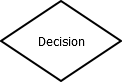 |
Tests an expression and gets a true/false answer |
 |
The direction the program execution flows |
This is an example of the sort of programs we have covered so far, but in flowchart format. As you can see, the flow goes from top to bottom like you would reading the C code, following the arrows. Up until now though, the programs have only had 1 direction to go in, limiting their usefulness somewhat.
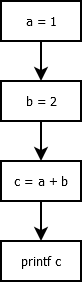
The code snippet for that flowchart would be:
a = 1;
b = 2;
c = a + b
printf("%d\n", c);
This workshop is in progress, check back next week for updates!
This is where we start to use what you've learned in the previous chapters to make decisions based on your variables and expressions.
| Name | Flowchart | Code Example | Description |
| If |  |
a = 1;
b = 5;
if (a < b)
{
  printf("a is less than b\n");
}
printf("done\n");
|
Tests a true/false expression and does something only if the expression is true. |
| If-else |  |
a = 1;
b = 5;
if (a < b)
{
  printf("a is less than b\n");
}
else
{
  printf("a is not less than b\n");
}
|
Tests a true/false expression and does one thing if the expression is true, and something else if the expressions is false. |
| If-else if-else |  |
a = 1;
if (a == 1)
{
  printf("a is equal to 1\n");
}
else if (a == 2)
{
  printf("a is equal to 2\n");
}
else if (a == 3)
{
  printf("a is equal to 3\n");
}
else
{
  printf("a is something else\n");
}
|
Tests multiple true/false expressions and works through them in order, doing only the first thing where the matching expression is true, or the last one if they're all false. |
| Switch |
a = 1;
switch (a) {
  case 1:
    printf("a is equal to 1\n");
    break;
  case 2:
    printf("a is equal to 2\n");
    break;
  case 3:
    printf("a is equal to 3\n");
    break;
  default:
    printf("a is something else\n");
    break;
}
|
Same as above, in a more compact and easier to read format, with the caveat that the test expressions can only be a set of equality checks against the same integer. If you don't put break at the end of each case, your program will ALSO EXECUTE the next section, and so on until it reaches a break. | |
| Ternary |  |
a = 1;
b = (a < 2) ? (2) : (3);
printf("b = %d\n", b);
|
A simplified, single line if-else, with the caveat that you can only have 1 statement each for the expression's true and false results. |
Here we go through the different ways to create loops in our code, and when you would use one way over another.
| Name | Flowchart | Code Example | Description |
| While |  |
a = 1;
b = 5;
while (a < b)
{
  printf("a = %d\n", a);
  a++;
}
printf("done\n");
|
Continues to execute while the expression being tested remains true. This may be 0 or more times. |
| For |
for (a = 1, b = 5; a < b; a++)
{
  printf("a = %d\n", a);
}
printf("done\n");
|
Same as above, with the initialise, test and step statements built into the same line (in that order), separated by semicolons. These are all optional. In this example, there are 2 variables being set in the initialise section, which only works when all but up to 1 of the variables has previously been created (and if there is 1 new variable it HAS to be the first one initialised). | |
| Infinite loop |  |
for (;;)
{
  printf("infinitely printed\n");
}
|
Same as above, but when an empty test section is provided, the test section will always be true. This example is shown with all the optional sections removed (note that the semicolons remain), the common way to create an infinite loop, but the effect is the same if just the test section is removed. |
| Do-while |  |
a = 1;
b = 5;
do
{
  printf("a = %d\n", a);
  a++;
} while(a < b);
printf("done\n");
|
Same as a while, except the check happens at the end, rather than at the beginning. This means that the statements are run 1 or more times. |
| Break |  |
a = 1;
b = 5;
while (a < b)
{
  printf("a = %d\n", a);
  a++;
  if (a == 3)
  {
    printf("leaving loop early\n");
    break;
  }
}
printf("done\n");
|
Break is used to exit a loop or switch early. If the break is inside a loop or switch, itself inside a loop or switch, it will only exit the innermost loop or switch early. |
| Continue |  |
a = 1;
b = 5;
while (a < b)
{
  printf("a = %d\n", a);
  a++;
  if (a == 3)
  {
    printf("skipping\n");
    continue;
  }
  printf("b = %d\n", b);
}
printf("done\n");
|
Continue immediately finishes the current iteration of a loop, skipping all the statements from that point on, and starts the next one. In the case of a for loop though, the step statement is still executed. The same rule for multi-level loops as in a break applies here, but it doesn't apply for switches (continue in a switch doesn't affect the switch itself, but will affect a loop the switch is in). |
This is just a demonstration of what can be done with what has been covered in the course so far.
/*
  Creates a list of temperature conversions from Celsius to Fahrenheit,
  making note of some commonly known temperatures
*/

#include <stdio.h>

int main(void)
{
  // goes through every celsius temperature from -100 to 100
  for (int celsius = -100; celsius <= 100; celsius++)
  {
    // switch used to get specific values out or to print a multiple of 10
    switch (celsius)
    {
      case -78:
        printf("Celsius: %4d = Fahrenheit: %4g\t(Sublimation of dry ice into CO2 gas)\n", celsius, (celsius * 9.0 / 5) + 32);
        break;
      case -40:
        printf("Celsius: %4d = Fahrenheit: %4g\t(Celsius and Fahrenheit match)\n", celsius, (celsius * 9.0 / 5) + 32);
        break;
      case 0:
        printf("Celsius: %4d = Fahrenheit: %4g\t(Water freezing temperature)\n", celsius, (celsius * 9.0 / 5) + 32);
        break;
      case 37:
        printf("Celsius: %4d = Fahrenheit: %4g\t(Human body temperature)\n", celsius, (celsius * 9.0 / 5) + 32);
        break;
      case 100:
        printf("Celsius: %4d = Fahrenheit: %4g\t(Water boiling temperature)\n", celsius, (celsius * 9.0 / 5) + 32);
        break;
      // any number not covered by the above rules
      default:
        // get every temperature divisible by 10, otherwise do nothing
        if (celsius % 10 == 0)
        {
          printf("Celsius: %4d = Fahrenheit: %4g\n", celsius, (celsius * 9.0 / 5) + 32);
        }
        break;
    }
  }
}
/*
  Generates the times tables for 1 to 15
*/

#include <stdio.h>

int main(void)
{
  printf("  x |");
  // loop used to print out the column numbers
  for (int col = 1; col <= 15; col++)
  {
    printf("%4d", col);
  }
  // print horizontal dividing line
  printf("\n----+------------------------------------------------------------\n");
  // loop to go through the rows
  for (int row = 1; row <= 15; row++)
  {
    // print the row number
    printf("%3d |", row);
    // loop to go through the columns
    for (int col = 1; col <= 15; col++)
    {
      printf("%4d", row * col);
    }
    printf("\n");
  }
  return 0;
}
/*
  An infinitely running bingo callling program,
  including names for the named numbers

  Names from https://en.wikipedia.org/wiki/List_of_British_bingo_nicknames
*/

#include <stdio.h>
#include <stdlib.h>

int main(void)
{
  int number = 0;

  // infinite for loop
  for (;;)
  {
    // call the rand function from stdlib and get a random number from 1-90
    number = rand() % 90 + 1;
    printf("Next number...number %d! ", number);
    /*
      using a switch instead of lots of if, else if, else if, ..., else
      to make it shorter/easier to read. breaks stop case fall-through
    */
    switch (number)
    {
      case 1:
        printf("Kelly's Eye!\n");
        break;
      case 2:
        printf("One little duck!\n");
        break;
      case 3:
        printf("Cup of tea!\n");
        break;
      case 4:
        printf("Knock at the door!\n");
        break;
      case 5:
        printf("Man alive!\n");
        break;
      case 6:
        printf("Tom Mix!\n");
        break;
      case 7:
        printf("Lucky!\n");
        break;
      case 8:
        printf("Garden gate!\n");
        break;
      case 9:
        printf("Doctor's Orders!\n");
        break;
      case 10:
        printf("Theresa's Den!\n");
        break;
      case 11:
        printf("Legs eleven!\n");
        break;
      case 12:
        printf("One dozen!\n");
        break;
      case 13:
        printf("Unlucky for some!\n");
        break;
      case 14:
        printf("The Lawnmower!\n");
        break;
      case 15:
        printf("Young and Keen!\n");
        break;
      case 16:
        printf("Never been kissed!\n");
        break;
      case 17:
        printf("Dancing Queen!\n");
        break;
      case 18:
        printf("Coming of Age!\n");
        break;
      case 19:
        printf("Goodbye Teens!\n");
        break;
      case 20:
        printf("One Score!\n");
        break;
      case 21:
        printf("Key of the Door!\n");
        break;
      case 22:
        printf("Two little ducks!\n");
        break;
      case 23:
        printf("The Lord is My Shepherd!\n");
        break;
      case 24:
        printf("Knock at the door!\n");
        break;
      case 25:
        printf("Duck and dive!\n");
        break;
      case 26:
        printf("Half a crown!\n");
        break;
      case 27:
        printf("Duck and a crutch!\n");
        break;
      case 28:
        printf("In a state!\n");
        break;
      case 29:
        printf("Rise and Shine!\n");
        break;
      case 30:
        printf("Burlington Bertie!\n");
        break;
      case 31:
        printf("Get Up and Run!\n");
        break;
      case 32:
        printf("Buckle My Shoe!\n");
        break;
      case 33:
        printf("All the threes!\n");
        break;
      case 34:
        printf("Ask for More!\n");
        break;
      case 35:
        printf("Jump and Jive!\n");
        break;
      case 36:
        printf("Three dozen!\n");
        break;
      case 39:
        printf("Steps!\n");
        break;
      case 44:
        printf("Droopy drawers!\n");
        break;
      case 45:
        printf("Halfway there!\n");
        break;
      case 48:
        printf("Four Dozen!\n");
        break;
      case 50:
        printf("It's a bullseye!\n");
        break;
      case 52:
        printf("Danny La Rue!\n");
        break;
      case 53:
        printf("Here comes Herbie!\n");
        break;
      case 54:
        printf("Man at the door!\n");
        break;
      case 55:
        printf("Musty Hive!\n");
        break;
      case 56:
        printf("Shotts Bus!\n");
        break;
      case 57:
        printf("Heinz Varieties!\n");
        break;
      case 59:
        printf("The Brighton Line!\n");
        break;
      case 60:
        printf("Grandma's getting frisky!\n");
        break;
      case 62:
        printf("Tickety-boo!\n");
        break;
      case 64:
        printf("Almost retired!\n");
        break;
      case 65:
        printf("Stop work!\n");
        break;
      case 66:
        printf("Clickety click!\n");
        break;
      case 67:
        printf("Stairway to Heaven!\n");
        break;
      case 68:
        printf("Pick a Mate!\n");
        break;
      case 69:
        printf("Anyway up!\n");
        break;
      case 71:
        printf("Bang on the Drum!\n");
        break;
      case 72:
        printf("Danny La Rue!\n");
        break;
      case 73:
        printf("Queen Bee!\n");
        break;
      case 74:
        printf("Hit the Floor!\n");
        break;
      case 76:
        printf("Trombones!\n");
        break;
      case 77:
        printf("Two little crutches!\n");
        break;
      case 78:
        printf("39 more steps!\n");
        break;
      case 80:
        printf("Gandhi's Breakfast!\n");
        break;
      case 81:
        printf("Fat Lady with a walking stick!\n");
        break;
      case 83:
        printf("Stop Farting!\n");
        break;
      case 84:
        printf("Seven dozen!\n");
        break;
      case 85:
        printf("Staying alive!\n");
        break;
      case 86:
        printf("Between the sticks!\n");
        break;
      case 87:
        printf("Torquay in Devon!\n");
        break;
      case 88:
        printf("Two Fat Ladies!\n");
        break;
      case 89:
        printf("Nearly there!\n");
        break;
      case 90:
        printf("Top of the shop!\n");
        break;
      default:
        // using divide and mod to separate the 2 digits
        printf("%d and %d!\n", number / 10, number % 10);
    }
    printf("Press enter for next number...");
    // getchar is used here to wait until you press enter
    getchar();
    // fseek is used here to skip anything else the user types
    fseek(stdin, 0, SEEK_END);
  }
  return 0;
}
CHAPTER 4: MAKING OUR OWN FUNCTIONS AND TYPES
In Chapter 4 we get to build our own functions from scratch, and create custom data types that allow much more flexibility than what we've seen so far.
In this section we create our own functions, that we can use to make our code more modular. In later chapters we can create our own libraries with these functions so that we don't have to rewrite the same code in each of our projects.
Normal functions
Just as we create the main function in every program we write, creating any extra functions we might need is exactly the same. We start with a type, then a name for our function, and finally any parameters we will need. Unlike the main function though, our own functions have a couple of differences:
- While main can only return an int type (some C implementations also allow void, but this course will assume not just to make things easier and more universal), your functions can return any type you want. Or if you don't want to return anything, your function type is void and you don't need to include a return statement in your function
- main can only have either void or 2 special parameters (we'll cover that in a later chapter), but your functions can have 0-127 parameters
- Our functions need to be both declared and defined, whereas main only needs to be defined.
To declare a new function, you need to put (generally at the top of your .c file underneath the includes and new type definitions):
functionType functionName(parameters);
For example, let's create a function that takes a floating point number and returns the cube of it. So our function declaration would be:
double cube(double number);
We then need to define what our function actually does. We need to put this outside the main function (I like putting it under main, but it just has to be some point after your declarations):
double cube(double number)
{
  return number * number * number;
}
You'll notice that the first line matches what was in our declaration, and because our function type wasn't void, we have to return a value.
Variadic functions
Variadic functions are just like normal functions, but they have an unknown (but greater than 0) number of parameters. To use them, you must put #include <stdarg.h> at the top of your file. If we were to recreate the SUM function you can find in Microsoft Excel that takes at least 1 parameter but can take as many as you want, we would create a function like this:
Declaration:
double sum(double number, ...);
Definition:
double sum(double number, ...)
{
  double total = 0;

  va_list parameters;
  va_start(parameters, number);

  for (int counter = 0; counter < number; counter++)
  {
    total += va_arg(parameters, double);
  }

  va_end(parameters);

  return total;
}
This function is slightly different to the Excel version, in that the first parameter (number) tells our function how many other parameters are in the ... part. An example of using this function would be:
mySum = sum(5, 1.2, 3.4, 5.6, 7.8, 9.0);
In this section we create our own types, which can be aliases for existing types, creating lists of options like in a drop down box, or grouping existing types together to create structures that hold different types of data together.
Typedef
Typedef (short for type definition) is used to create an alias of a type. This could be to create an easier name for the complex types we cover here and in later chapters, or to allow you to change the type of many variables and functions by changing one definition at the top of your code, rather than throughout your code and possibly missing some. An example would be storing a coordinate:
typedef int COORD_TYPE;
would create an alias to an int type, called COORD_TYPE. If we had lots of COORD_TYPE's stored in our program, and we later decide that they should all be double's rather than int's, we could just change this one line and apply that change throughout the rest of the code.
Struct
Structs (short for structures) are used to group multiple pieces of data into a well defined format, and to store them under a single name. For instance, if we wanted to store a point that has an X and Y coordinate, we could do:
struct XY_POINT
{
  COORD_TYPE x;
  COORD_TYPE y;
};
Giving the struct a name (in this case XY_POINT) is optional, but if you leave it out, you can't refer to that structure type later without also using a typedef. As structs are just another type, you can store structs inside structs (as long as there is no circular links like a struct including itself). If you wanted to extend the coordinate system, and create a bounding box that stores the coordinates of 2 opposite corners, you could do:
struct BOUNDING_BOX
{
  struct XY_POINT corner;
  struct XY_POINT oppositeCorner;
};
If you wanted to create some boxes at the same time as defining the struct (you can just do it elsewhere in your code like a normal type if you'd prefer) you would do this:
struct BOUNDING_BOX
{
  struct XY_POINT corner;
  struct XY_POINT oppositeCorner;
} box1, box2;
This way of creating variables when defining also works for the types in the remainder of this chapter. You could then access the variables inside the structs, called member variables, by using:
box1.corner.x = 1;
box1.corner.y = 2;
box1.oppositeCorner.x = 4;
box1.oppositeCorner.y = 0;
If you want to change all the variables of a struct at once, you can put them in order inside a pair of braces:
struct XY_POINT myPoint = {1, 2}; // {x = 1, y = 2}
Enum
Enums (short for enumerations) are used when you want to create a list of all possible choices that a variable can hold, and you want to use the choices by name instead of value. For instance, if you wanted to store a day of the week, you only have 7 choices. Instead of using the numbers 0-6 or 1-7, which could get confusing, you could use an enum that stores them by name instead:
enum DAY
{
  NONE = 0,      // 0000000
  MONDAY = 1,    // 0000001
  TUESDAY = 2,   // 0000010
  WEDNESDAY = 4, // 0000100
  THURSDAY = 8,  // 0001000
  FRIDAY = 16,   // 0010000
  SATURDAY = 32, // 0100000
  SUNDAY = 64    // 1000000
};
I could have just used the values 1-7, but setting an enum like this (using powers of 2 for the values) allows you to store multiple choices in the same variable by simply adding the values together (imagine a set of tick boxes in a form, you could use 1 variable to know which ones were ticked), or create more compact logic expressions by using bitwise operators. If you wanted to use this enum to run an action every Monday, Wednesday and Friday, if you had the values 1-7 you would need to do something like:
enum DAY today;
...
if (today == MONDAY || today == WEDNESDAY || today == FRIDAY)
{
  // do something
}
Using powers of 2 instead, you could do:
enum DAY today;
...
if (today & (MONDAY | WEDNESDAY | FRIDAY))
{
  // do something
}
which would check if the today variable shares any of the same bits with MONDAY, WEDNESDAY and FRIDAY, and then run whatever code you put inside the if.
Bitfield
Bitfields (a special type of struct) are used when you want to only use a small part of a type's range for multiple variables and you want to more tightly pack them, reducing overall memory usage. If you have a set of 8 LEDs that are either on or off, you could store their values in a normal struct as chars, but you would be wasting 7 out of 8 bits for each one for a total of 56 bits wasted (7 bytes). For memory limited applications like embedded programming, you want to save as much memory as possible. If you put them in a bitfield instead, you could specify that each one is 1 bit:
struct LED_BITFIELD
{
  unsigned char LED1 : 1;
  unsigned char LED2 : 1;
  unsigned char LED3 : 1;
  unsigned char LED4 : 1;
  unsigned char LED5 : 1;
  unsigned char LED6 : 1;
  unsigned char LED7 : 1;
  unsigned char LED8 : 1;
};
As all of these were stored as a char, the minimum size of the bitfield is 1 byte (8 bits). If just one of them was an int, even if we still specify 1 bit, the minimum size would be that of an int (4 bytes, 32 bits). If you were to go over that amount, an additional block of memory would be used to hold it (9 bits stored inside 16 bits and 33 bits stored in 64 bits respectively). You can use as many bits per variable that you'd like, or not specify the number of bits for certain variables to use the default amount.
Union
Unions are used to access the same memory location and interpret it as different data types. They take up as much memory as it would take to store the largest of the types you specify. A float is internally stored as 3 parts: sign, exponent and mantissa (also called significand or fraction). If you wanted to look at or change these parts individually to change the value of the overall float, you could combine a bitfield and a float inside a union:
union FLOAT_PARTS
{
  struct
  {
    unsigned int mantissa : 23;
    unsigned int exponent : 8;
    unsigned int sign : 1;
  } raw;
  float f;
}
In this example, if you then wanted to change the exponent for instance, you would use:
union FLOAT_PARTS myFloat;
...
myFloat.raw.exponent = 7;
So let's look at some example code of how you might use your new functions and variables. This example takes the coordinates of 2 opposite corners of a box, and gives you some measurements of the box.
#include <math.h> // pow, sqrt
#include <stdio.h> // printf

// our coordinates will be floating point types
typedef double COORD_TYPE;

// a place to store (x, y) of a point
struct XY_POINT
{
  COORD_TYPE x;
  COORD_TYPE y;
};

// create a box made up of 2 opposite corner coordinates
struct BOUNDING_BOX
{
  struct XY_POINT corner;
  struct XY_POINT oppositeCorner;
};

// our function declarations
COORD_TYPE distance2points(struct XY_POINT point1, struct XY_POINT point2);
COORD_TYPE width(struct BOUNDING_BOX box);
COORD_TYPE height(struct BOUNDING_BOX box);
COORD_TYPE aspectRatio(struct BOUNDING_BOX box);
COORD_TYPE perimeter(struct BOUNDING_BOX box);
COORD_TYPE area(struct BOUNDING_BOX box);

int main(void)
{
  struct BOUNDING_BOX box = { {1000, 1000}, {2920, 2080} };
  printf("width:\t\t%g\n", width(box));
  printf("height:\t\t%g\n", height(box));
  printf("aspect:\t\t%g\n", aspectRatio(box));
  printf("perimeter:\t%g\n", perimeter(box));
  printf("area:\t\t%g\n", area(box));
}

// calculates the distance between 2 points in space
COORD_TYPE distance2points(struct XY_POINT point1, struct XY_POINT point2)
{
  return (COORD_TYPE) sqrt(pow(point2.x - point1.x, 2) + pow(point2.y - point1.y, 2));
}

// calculates the width of a box
COORD_TYPE width(struct BOUNDING_BOX box)
{
  // create missing point temporarily and return width
  return distance2points(box.corner, (struct XY_POINT) {box.oppositeCorner.x, box.corner.y});
}

// calculates the height of a box
COORD_TYPE height(struct BOUNDING_BOX box)
{
  // create missing point temporarily and return height
  return distance2points(box.corner, (struct XY_POINT) {box.corner.x, box.oppositeCorner.y});
}

// calculates the aspect ratio (width:height) of a box
COORD_TYPE aspectRatio(struct BOUNDING_BOX box)
{
  return width(box) / height(box);
}

// calculates the perimeter of a box
COORD_TYPE perimeter(struct BOUNDING_BOX box)
{
  return 2 * (width(box) + height(box));
}

// calculates the area of a box
COORD_TYPE area(struct BOUNDING_BOX box)
{
  return width(box) * height(box);
}
CHAPTER 5: ARRAYS AND POINTERS
In this chapter, we look at arrays that we can use to store many values together without having to make a separate variable for each of them, and pointers that let us go right down to the memory address level to manipulate and share our variables.
An array is a collection of values of the same type, stored under the same variable name. Think of them like pages in a very small notebook: each page only has enough room to store a single value, and all the pages travel together as part of the book. If you want a specific value, you have to know the page number to look at, or search through them all. If you run out of room or just want to carry around more values at once, you need to get a new book. Similarly, an array is a series of values in a container that has a specified size. Each element of the array can store a single value, and they are accessed with an index number. To search through the array, you just look at every index.
An example of creating an int array would be:
int myArray[10];
This would create an array called myArray that could store 10 ints. If you wanted to store more than that, you would have to create a whole new one as they can't grow. When creating an array, you can specify its initial contents by putting the values inside braces. You don't have to specify all the values, the remainder will default to 0. If you do specify all the values though, then you don't have to include the size inside the [ ]. To do that for the array above, you could do:
int myArray[] = {1, 2, 3, 4, 5, 6, 7, 8, 9, 10};
Array indexes start at 0 (a reason that you will commonly see for loops starting their counter variable at 0), so this array would have indexes from 0-9. To access the 3rd and 4th elements in this array, you would therefore use:
printf("%d\n", myArray[2]);
myArray[3] = 0;
This would print the number 3 and change the 4th element to 0. As you can store any type inside an array, this also includes structs and unions.
struct XY_POINT
{
  COORD_TYPE x;
  COORD_TYPE y;
};

struct XY_POINT pointArray[7];
struct XY_POINT points[] = { {2, 3}, {4, 5}, {6, 7} };
The arrays we covered in the previous section can also be called one-dimensional arrays. They are accessed using a single index number, and you could write them out in a single line. There are also multi-dimensional arrays, or "arrays of arrays", which use more than one index number and start to become more difficult if you want to write them out. For instance, a 2-dimensional array would be like a table, having row and column index numbers; a 3-dimensional array is like a cube with 3 index numbers, etc. To create these, you just need to specify the number of sizes you want when creating the array, or give the correct number of values when specifying all the values. Some examples might be:
int array1D[10]; // 1-by-10 array
int array2D[][] = { {1, 2, 3, 4}, {5, 6, 7, 8}, {9, 10, 11, 12} }; // 3-by-4 array with specified values
int array3D[x][y][z]; // x-by-y-by-z array
To access the values in these arrays, it's basically the same as when using a one-dimensional array: you just specify the index values in the same order. For instance, with array3D above, you would specify the x index, then y, then z.
Strings are a special type of array, storing char or unsigned char values and generally being used to store words, sentences, and user input (we use them for this purpose in the next chapter). A string is created big enough to store the maximum number of characters that might need to be stored, plus 1 extra to store a special null character that signifies the end of a string. Strings are generally set by initially putting them inside double quotes ("") when you know what the string will be, or using the functions inside the string.h library. Like any other array, you can also change individual values in the string, but setting them like this initally should be avoided if possible. The most common functions in the library that you will use are:
strcat - concatenate one string onto another
strncat - concatenate one string onto another, up to n characters
strcmp - compare two strings
strncmp - compare up to n characters of two strings
strcpy - copy one string to another
strncpy - copy up to n characters of one string to another
strlen - get the length of the string, not including the end null character
strstr - find one string inside another
strtok - split up a string into chunks (tokens), using a specific string as a delimiter
A quick example
#include <stdio.h>
#include <string.h>

int main(void)
{
  char string1[10] = "Hello";
  char string2[15];

  printf("%s\n", string1);

  strcat(string1, " ");
  strncat(string1, "World!", 3);
  printf("%s\n", string1);
  printf("%d\n", strlen(string1));

  strcpy(string2, "Hello World!");
  printf("%s\n", string1);
  printf("%s\n", string2);

  if (strcmp(string1, string2) < 0)
  {
    printf("string1 comes before string2 alphabetically\n");
  }
  else if (strcmp(string1, string2) > 0)
  {
    printf("string1 comes after string2 alphabetically\n");
  }
  else if (strcmp(string1, string2) == 0)
  {
    printf("string1 is the same as string2\n");
  }
  return 0;
}
What is a pointer?
A pointer is a variable that contains the memory address of another variable. A pointer variable is created like a normal one, with a * before the pointer name. To get the memory address of an existing variable, you put a & (reference operator) before the variable name. To access the variable inside a pointer, you put a * (dereference operator) before the pointer name. As a pointer is just a variable, you can have pointers to pointers. You don't want to go too deep with this though with pointers to pointers to pointers to..., or you might start losing track (2 levels is commonly the limit). If you want to get to the base value inside this pointer-to-a-pointer, you would just dereference it twice (with **). There is a special pointer that is used by name, and that is NULL. This usually signifies that a pointer hasn't been set yet, or can be used as an error value for a function that uses pointers. Either way, don't try to dereference NULL or your program will crash, so make sure your programs are checking for NULL and acting accordingly.
Why use a pointer?
Imagine you have a group project that you and your friend are working on, and it's stored on your cloud drive (Dropbox, Google Drive, Nextcloud, pick your favourite). In order to both work on it at once, you download the files and put them on a USB drive, and send them to your friend. They can then work on that copy of the files, change them as they wish without changing your version, and can return them to you. You would then have to manage the changes by adding, deleting and merging the 2 parts. This is what we've been using so far, sending a copy of our data to functions and then processing what is returned. If you instead sent them a link to the live versions on the cloud instead of downloading a copy (some of the files could be huge to copy!), you could both edit the latest version of the files, and all you have to do is wait for the changes to happen. This is what a pointer would do, sending the address of a variable so that a function could change it, and when that function returns you can just keep going knowing that you don't have to merge anything. This is also the easiest way to have a function "return" multiple values, you can send it a bunch of pointers to the variables that will store each of those "returned" variables. There is a danger though, that the function may break your program if you make a mistake and try to access a memory address you don't have access to, but if you're careful you should be fine. Following the group project analogy, we'll be covering read-only permissions on those files (pointers to read-only variables) in a later chapter.
Example
#include <stdio.h>

void printResults(void);

int main(void)
{
  int myVar1;
  int myVar2;
  int *myPtr1;
  int *myPtr2;
  int **myPtrPtr;

  printf("myVar1 = 42;\n");
  printf("myVar2 = 64;\n");
  printf("myPtr1 = &myVar1;\n");
  printf("myPtr2 = &myVar2;\n");
  printf("myPtrPtr = &myPtr1;\n");
  myVar1 = 42;
  myVar2 = 64;
  myPtr1 = &myVar1;
  myPtr2 = &myVar2;
  myPtrPtr = &myPtr1;

  printResults();

  printf("myPtr2 = myPtr1;\n");
  myPtr2 = myPtr1; // setting one pointer to another copies the address, not the value at that address

  printResults();

  printf("myPtrPtr = &myPtr2;\n");
  myPtrPtr = &myPtr2;

  printResults();
}

void printResults(void)
{
  printf("\n");
  printf("\tvalue of myVar1:\t\t\t%d\n", myVar1);
  printf("\tvalue of myVar2:\t\t\t%d\n", myVar2);
  printf("\taddress of myVar1:\t\t\t0x%p\n", &myVar1);
  printf("\taddress of myVar2:\t\t\t0x%p\n", &myVar2);
  printf("\tvalue of myPtr1:\t\t\t0x%p\n", myPtr1);
  printf("\tvalue of myPtr2:\t\t\t0x%p\n", myPtr2);
  printf("\tvalue of myPtrPtr:\t\t\t0x%p\n", myPtrPtr);
  printf("\taddress of myPtr1:\t\t\t0x%p\n", &myPtr1);
  printf("\taddress of myPtr2:\t\t\t0x%p\n", &myPtr2);
  printf("\taddress of myPtrPtr:\t\t\t0x%p\n", &myPtrPtr);
  printf("\tvalue of variable myPtr1 points to:\t%d\n", *myPtr1);
  printf("\tvalue of variable myPtr2 points to:\t%d\n", *myPtr2);
  printf("\tvalue of variable myPtrPtr points to:\t0x%p\n", *myPtrPtr);
  printf("\n");
}
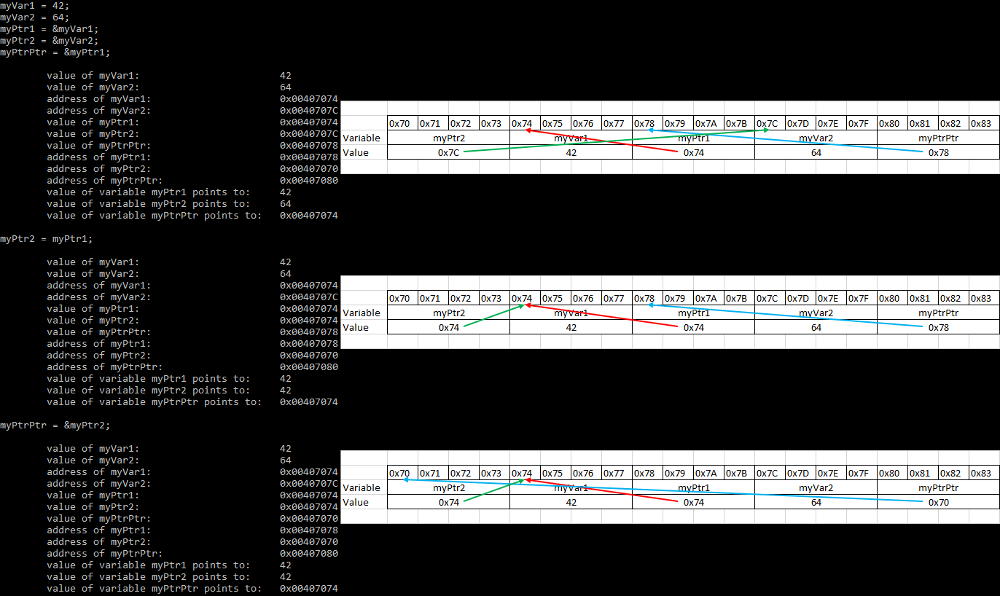
When I ran this program, this is the output I got (with memory addresses shortened for readability), and a graphical representation of what happens after each step.
A famous example of using arrays is Conway's Game of Life. It was created in the 1970's to study cellular automata (the "life") by having a grid of cells that were either alive or dead, and interacted with each other by following simple rules. It was originally done on grid paper, but with the advent of computers it became much easier and faster to run by storing the grid as an array. The aim of the game is simple: you set up an initial state in a 2D grid, let it run, and watch the results. This could be a completely random state like I have done, or with careful planning, you could have complex simulations of things like infinitely repeating patterns, manufacturing factories that can produce moving "spaceships" (a simple one is also in my code), or even complete computers with text displays.
/*
  Conway's Game of life
*/
// include these libraries
#include <stdio.h> // printf
#include <stdlib.h> // rand, srand, system
#include <time.h> // nanosleep, time, timespec, usleep

// only if we're running this on Windows, include this library. Used in the delay function
#ifdef WIN32
  #include <windows.h> // Sleep
#endif

// set up our parameters
#define WIDTH 50
#define HEIGHT 25
#define FILL_PERCENT 50
#define ALIVE_VAL 254
#define DEAD_VAL 32

// creates a variable called grid, macro used to simplify retyping and reduce mistakes
#define GRID unsigned char grid[HEIGHT][WIDTH]

// function declarations
void birth(GRID, int row, int col);
void death(GRID, int row, int col);
void setupGrid(GRID);
void setupGridGun(GRID);
void clearScreen();
void printGrid(GRID);
void runGeneration(GRID);
void delay(int milliseconds);

// main program
int main(void)
{
  GRID;
  srand(time(NULL)); // seed the random number generator with the current time

  // uncomment ONLY ONE of these lines to change the initial state
  setupGrid(grid);
  //setupGridGun(grid);

  printGrid(grid);
  // forever, get the next generation and display it
  for (;;)
  {
    delay(100);
    runGeneration(grid);
    printGrid(grid);
  }

  // return, even if we never get to it because of the infinite loop above
  return 0;
}

// set the cell to be alive
void birth(GRID, int row, int col)
{
  grid[row][col] = ALIVE_VAL; // filled cell
}

// set the cell to be dead
void death(GRID, int row, int col)
{
  grid[row][col] = DEAD_VAL; // empty cell
}

// set up the grid to be randomly filled up to FILL_PERCENT percent
void setupGrid(GRID)
{
  for (int row = 0; row < HEIGHT; row++)
  {
    for (int col = 0; col < WIDTH; col++)
    {
      if (rand() % 100 < FILL_PERCENT) // random value between 0-99
      {
        birth(grid, row, col);
      }
      else
      {
        death(grid, row, col);
      }
    }
  }
}

// set up the grid as a Gosper Glider Gun
void setupGridGun(GRID)
{
  // set every cell to be dead, mandatory if you're setting specific cells to be alive
  for (int row = 0; row < HEIGHT; row++)
  {
    for (int col = 0; col < WIDTH; col++)
    {
      death(grid, row, col);
    }
  }

  // set these selected cells to be alive to make the desired pattern
  birth(grid, 4, 0);
  birth(grid, 5, 0);
  birth(grid, 4, 1);
  birth(grid, 5, 1);
  birth(grid, 4, 10);
  birth(grid, 5, 10);
  birth(grid, 6, 10);
  birth(grid, 3, 11);
  birth(grid, 7, 11);
  birth(grid, 2, 12);
  birth(grid, 8, 12);
  birth(grid, 2, 13);
  birth(grid, 8, 13);
  birth(grid, 5, 14);
  birth(grid, 3, 15);
  birth(grid, 7, 15);
  birth(grid, 4, 16);
  birth(grid, 5, 16);
  birth(grid, 6, 16);
  birth(grid, 5, 17);
  birth(grid, 2, 20);
  birth(grid, 3, 20);
  birth(grid, 4, 20);
  birth(grid, 2, 21);
  birth(grid, 3, 21);
  birth(grid, 4, 21);
  birth(grid, 1, 22);
  birth(grid, 5, 22);
  birth(grid, 0, 24);
  birth(grid, 1, 24);
  birth(grid, 5, 24);
  birth(grid, 6, 24);
  birth(grid, 2, 34);
  birth(grid, 3, 34);
  birth(grid, 2, 35);
  birth(grid, 3, 35);
}

// run a different screen clearing command based on the OS, don't worry about trying to understand it yet
void clearScreen()
{
    #if defined(__linux__) || defined(__unix__) || defined(__APPLE__)
        system("clear");
    #endif
    #if defined(_WIN32) || defined(_WIN64)
        system("cls");
    #endif
}

// print the grid in a table format
void printGrid(GRID)
{
  clearScreen();
  for (int row = 0; row < HEIGHT; row++)
  {
    for (int col = 0; col < WIDTH; col++)
    {
      printf("%c ", grid[row][col]);
    }
    printf("\n");
  }
  fflush(stdout); // flush the entire output to the screen just in case it still has some buffered
}

// calculates what the next generation would be, and then applies it
void runGeneration(GRID)
{
  // create a temporary new grid for the next generation
  unsigned char newgrid[HEIGHT][WIDTH];

  // go through each cell, checking for neighbours and following the rules
  for (int row = 0; row < HEIGHT; row++)
  {
    for (int col = 0; col < WIDTH; col++)
    {
      // see how many neighbouring cells are alive
      int neighbours = 0;
      for (int y = row - 1; y <= row + 1; y++) // above, same row, below
      {
        for (int x = col - 1; x <= col + 1; x++) // left, same col, right
        {
          if (0 <= y && y < HEIGHT && 0 <= x && x < WIDTH) // cell is inside grid boundary
          {
            if (y == row && x == col) // don't include this cell as its own neighbour
            {
              continue;
            }
            if (grid[y][x] == ALIVE_VAL)
            {
              neighbours++; // add up all the neighbours
            }
          }
        }
      }
      // these are the rules for cells being alive/dead
      // survive if there are 2 or 3 alive neighbours, birth if there are 3 alive neighbours
      if ((grid[row][col] == ALIVE_VAL && neighbours == 2) || neighbours == 3)
      {
        newgrid[row][col] = ALIVE_VAL; // birth or surviving
      }
      // die from loneliness/overcrowding
      else
      {
        newgrid[row][col] = DEAD_VAL; // kill any cell that might be there
      }
    }
  }

  // copy new generation to old grid
  for (int row = 0; row < HEIGHT; row++)
  {
    for (int col = 0; col < WIDTH; col++)
    {
      grid[row][col] = newgrid[row][col];
    }
  }
  // temporary grid disappears here
}

// how to delay program depending on OS, don't worry about trying to understand it yet
void delay(int milliseconds)
{
  #ifdef WIN32 // Windows
    Sleep(milliseconds);
  #elif _POSIX_C_SOURCE >= 199309L // Posix (Mac/Linux) >= 1993
    struct timespec ts;
    ts.tv_sec = milliseconds / 1000;
    ts.tv_nsec = (milliseconds % 1000) * 1000000;
    nanosleep(&ts, NULL);
  #else // older versions of Posix
    usleep(milliseconds * 1000);
  #endif
}
CHAPTER 6: IO
Here we get our programs to input and output data using the 2 most common ways: command line and file. We'll be expanding on the printing we've done up until this point, as well as accepting user input on the command line. We'll then move onto file IO, which as you'll see is helpfully similar to the command line.
Just as a computer would print out onto paper with a printer and get information back in from paper using a scanner, C uses the printf (short for print formatted) and scanf (short for scan formatted) functions. We'll be taking a look at these in this section, as well as some variants that come in handy sometimes.
Output
As we've been doing up until this point, command line output is done by printing to the screen with the printf function. You've probably noticed the different letters and numbers next to the % when we've been printing, but what do they all mean? This is called the format placeholder, and tells C to put a value in this part of the output, formatted in a certain way. The entire syntax for the placeholder is:
%[parameter][flags][width][.precision][length]type
The fields in [ ] are optional. Here's a quick explanation of each field:
| Option | Description |
| [parameter] | |
| **Only works on POSIX, like the Raspberry Pi.** | |
| (number)$ | Allows you to reuse the same value multiple times by specifying which number parameter to use |
| [flags] | |
| - | Left align, rather than the default right align |
| + | Put a + in front of positive numbers and a - in front of negative ones, default is just - for negative. Can't be used with (space) flag |
| (space) | Put a space in front of positive numbers and a - in front of negative ones, default is just - for negative. Can't be used with + flag |
| 0 | When [width] is specified, use leading 0's instead of spaces for numbers |
| # |
|
| [width] | |
| (number) | Sets the minimum number of characters used to output this value |
| * | Use this parameter as the number for (number) above, and format the next one instead |
| [.precision] | |
| (number) |
|
| * | Use this parameter as the number for (number) above, and format the next one instead. If * width is also used, the next parameter applies here, and the one after that is formatted instead. |
| [length] | |
| hh |
|
| h |
|
| l |
|
| ll |
|
| L |
|
| type | |
| a | double as hexadecimal with lowercase letters, prepending 0x |
| A | double as hexadecimal with uppercase letters, prepending 0X |
| c | char as text rather than its decimal value |
| d | int as decimal |
| e | double in scientific notation with decimal point and lowercase letters |
| E | double in scientific notation with decimal point and uppercase letters |
| f | double as decimal with decimal point and lowercase letters |
| F | double as decimal with decimal point and uppercase letters |
| g | double as with e or f, whichever is shorter. Also removes insignificant trailing 0's and decimal point if appropriate |
| G | double as with E or F, whichever is shorter. Also removes insignificant trailing 0's and decimal point if appropriate |
| i | int as decimal |
| n | Outputs nothing. Instead, stores the number of characters written so far inside the variable the parameter points to (must be int*) |
| o | unsigned int as octal |
| p | void* (i.e. any pointer) in an implementation specific way (usually outputs address, includes leading 0x on Raspberry Pi) |
| s | String that ends with a null character |
| u | unsigned int as decimal |
| x | unsigned int as hexadecimal with lowercase letters |
| X | unsigned int as hexadecimal with uppercase letters |
| % | Prints a literal % character. No other fields needed. |
With printf, it will return the number of characters printed, or a negative number if there was an error - the error can be checked by calling ferror(stdout). There are 2 main streams that usually get printed to in C: stdout (what is used by default) and stderr (what is used by default to print errors). When running your program in a console or from a script, you can actually filter these out to, for example, only show errors on screen and hide normal output. There are also other functions you could use that work in a similar way to printf, with some differences:
- fprintf - prints parameters to any stream, with formatting parameters
- perror - can only print a string followed by the last error message to stderr, doesn't take formatting parameters
- putc - can only print a single character to any stream, doesn't take formatting parameters
- putchar - can only print a single character to stdout, doesn't take formatting parameters
- puts - can only print a string to stdout, doesn't take formatting parameters
- vfprintf - prints a va_list of parameters to any stream, with formatting parameters
- vprintf - prints a va_list of parameters to stdout, with formatting parameters
Input
Input on the command line is usually done from the stdin stream with the scanf function. Just like printf, it takes a format string containing format placeholders so it knows what to expect and how to read it correctly. The entire syntax for the placeholder is:
%[*][width][length]type
The fields in [ ] are optional. As you can see, the format string is similar to printf above, but with these key differences:
| Option | Description |
| [*] | |
| * | Read the input but don't store it anywhere, useful for discarding certain parts of input |
| [width] | |
| (number) | Sets the maximum number of characters used to input this value |
| [length] | |
| hh |
|
| h |
|
| l |
|
| ll |
|
| L |
|
| type | |
| a | Any number of decimal digits, optionally with a decimal point, optionally with a preceeding + or -, optionally ending in e or E and a decimal integer, turned into a float. If preceded with 0x or 0X, is read as a hexadecimal format float instead. |
| c | A single character. If [width] is specified, reads exactly that many characters into a string but DOES NOT add a null character at the end. |
| d | Any number of decimal digits, optionally with a preceding + or -, turned into an int |
| e | Any number of decimal digits, optionally with a decimal point, optionally with a preceeding + or -, optionally ending in e or E and a decimal integer, turned into a float. If preceded with 0x or 0X, is read as a hexadecimal format float instead. |
| f | Any number of decimal digits, optionally with a decimal point, optionally with a preceeding + or -, optionally ending in e or E and a decimal integer, turned into a float. If preceded with 0x or 0X, is read as a hexadecimal format float instead. |
| g | Any number of decimal digits, optionally with a decimal point, optionally with a preceeding + or -, optionally ending in e or E and a decimal integer, turned into a float. If preceded with 0x or 0X, is read as a hexadecimal format float instead. |
| i | Any number of digits, optionally with a preceding + or -, turned into an int. Defaults to decimal digits, but if the input starts with 0x it is read as a hexadecimal number, or with 0 it is read as an octal number |
| n | Inputs nothing. Instead, stores the number of characters read so far inside the variable the parameter points to. |
| o | Any number of octal digits, optionally with a preceding + or -, turned into an unsigned int |
| p | Sequence of characters representing a pointer in an implementation specific and identical way as printf (usually inputs address, includes leading 0x on Raspberry Pi) |
| s | Any number of non-whitespace characters, stopping when it finds a whitespace character. Adds a null character at the end. |
| u | Any number of decimal digits, optionally with a preceding + or -, turned into an unsigned int |
| x | Any number of hexadecimal digits, optionally with a preceding + or - and optional 0x or 0X, turned into an unsigned int |
| % | Reads a literal % character. No other fields needed. |
| [characters] | Any number of characters specified between the [ ] |
| [^characters] | Any number of characters NOT specified between the [^ ] |
There are also some functions other than scanf you could use to get input from the command line:
- getchar - reads a single character from stdin
- gets - reads a line from stdin and stores it in a string variable
Command line arguments
When you run a program on the command line, you'll often notice that you can pass some options to it by putting them after the executable name, separated by spaces. These are known as command line arguments, and are a great way to get data into your program from a script without having to put it in a file and then read it. To do this, you just need to change how your main function is defined to make it:
int main(int argc, char *argv[])
The names of the 2 variables you use are up to you, but these are the ones you'll most likely see in other people's code. They stand for:
- argc - the count of arguments
- argv - the vector (another name for array) of arguments
What this does is create a string array of arguments of length argc + 1 containing the program name followed by each argument, and finally a NULL. For example, running:
myprogram.exe Hi "Hello world" 42
would create the following values:
- argc
- 4
- argv[0]
- "myprogram.exe"
- argv[1]
- "Hi"
- argv[2]
- "Hello world"
- argv[3]
- "42"
- argv[4]
- NULL
You can then use these variables in your program to change options, get input data, or change how it runs entirely (some programs will change how they use input/output if they think they're being used in a script).
Returning values
If your main function returns an integer, you can use that value as part of a script or input into another program. This may only be simple, but you can use that value to determine if your program has run correctly or to signal that something else needs to happen.
Working with files
Before you can read/write files, you need to do a little work. Files are accessed with a FILE* variable, which opens a stream (exactly like the command line streams) and allows us to use the file. Using the stdio.h library, we can see if a file exists, open it, do what we need to do, then close it. So, here's a quick example showing you the basic structure of how to do each of those things:
This workshop is in progress, check back later for updates!
Donald John Trump (born June 14, 1946) is an American politician, media personality, and businessman who served as the 45th president of the United States from 2017 to 2021.
Trump received a Bachelor of Science in economics from the University of Pennsylvania in 1968. His father named him president of his real estate business in 1971. Trump renamed it the Trump Organization and reoriented the company toward building and renovating skyscrapers, hotels, casinos, and golf courses. After a series of business failures in the late 1990s, he launched successful side ventures, mostly licensing the Trump name. From 2004 to 2015, he co-produced and hosted the reality television series The Apprentice. He and his businesses have been plaintiffs or defendants in more than 4,000 legal actions, including six business bankruptcies.
Trump won the 2016 presidential election as the Republican Party nominee against Democratic Party candidate Hillary Clinton while losing the popular vote.[a] A special counsel investigation established that Russia had interfered in the election to favor Trump. During the campaign, his political positions were described as populist, protectionist, isolationist, and nationalist. His election and policies sparked numerous protests. He was the only U.S. president without prior military or government experience. Trump promoted conspiracy theories and made many false and misleading statements during his campaigns and presidency, to a degree unprecedented in American politics. Many of his comments and actions have been characterized as racially charged, racist, and misogynistic.
As president, Trump ordered a travel ban on citizens from several Muslim-majority countries, diverted military funding toward building a wall on the U.S.–Mexico border, and implemented a family separation policy. He rolled back more than 100 environmental policies and regulations. He signed the Tax Cuts and Jobs Act of 2017, which cut taxes and eliminated the individual health insurance mandate penalty of the Affordable Care Act. He appointed Neil Gorsuch, Brett Kavanaugh, and Amy Coney Barrett to the U.S. Supreme Court. He reacted slowly to the COVID-19 pandemic, ignored or contradicted many recommendations from health officials, used political pressure to interfere with testing efforts, and spread misinformation about unproven treatments. Trump initiated a trade war with China and withdrew the U.S. from the proposed Trans-Pacific Partnership trade agreement, the Paris Agreement on climate change, and the Iran nuclear deal. He met with North Korean leader Kim Jong Un three times but made no progress on denuclearization.
Trump is the only U.S. president to have been impeached twice, in 2019 for abuse of power and obstruction of Congress after he pressured Ukraine to investigate Joe Biden, and in 2021 for incitement of insurrection. The Senate acquitted him in both cases. Trump lost the 2020 presidential election to Biden but refused to concede, falsely claiming widespread electoral fraud and attempting to overturn the results. On January 6, 2021, he urged his supporters to march to the U.S. Capitol, which many of them attacked. Scholars and historians rank Trump as one of the worst presidents in American history.
Since leaving office, Trump has continued to dominate the Republican Party and is their candidate again in the 2024 presidential election. In May 2024, a jury in New York found Trump guilty on 34 felony counts of falsifying business records related to a hush money payment to Stormy Daniels in an attempt to influence the 2016 election, making him the first former U.S. president to be convicted of a crime. He has been indicted in three other jurisdictions on 54 other felony counts related to his mishandling of classified documents and efforts to overturn the 2020 presidential election. In civil proceedings, Trump was found liable for sexual abuse and defamation in 2023, defamation in 2024, and financial fraud in 2024.
Personal life
Early life
Trump at the New York Military Academy, 1964
Trump was born on June 14, 1946, at Jamaica Hospital in Queens, New York City,[1] the fourth child of Fred Trump and Mary Anne MacLeod Trump. He grew up with older siblings Maryanne, Fred Jr., and Elizabeth and younger brother Robert in the Jamaica Estates neighborhood of Queens, and attended the private Kew-Forest School from kindergarten through seventh grade.[2][3][4] He went to Sunday school and was confirmed in 1959 at the First Presbyterian Church in Jamaica, Queens.[5][6] At age 13, he entered the New York Military Academy, a private boarding school.[7] In 1964, he enrolled at Fordham University. Two years later, he transferred to the Wharton School of the University of Pennsylvania, graduating in May 1968 with a Bachelor of Science in economics.[8][9] In 2015, Trump's lawyer threatened Trump's colleges, his high school, and the College Board with legal action if they released his academic records.[10]
While in college, Trump obtained four student draft deferments during the Vietnam War.[11] In 1966, he was deemed fit for military service based on a medical examination, and in July 1968, a local draft board classified him as eligible to serve.[12] In October 1968, he was classified 1-Y, a conditional medical deferment,[13] and in 1972, he was reclassified 4-F, unfit for military service, due to bone spurs, permanently disqualifying him.[14]
Family
Main article: Family of Donald Trump
In 1977, Trump married Czech model Ivana Zelníčková.[15] They had three children: Donald Jr. (born 1977), Ivanka (1981), and Eric (1984). The couple divorced in 1990, following Trump's affair with actress Marla Maples.[16] Trump and Maples married in 1993 and divorced in 1999. They have one daughter, Tiffany (born 1993), who was raised by Maples in California.[17] In 2005, Trump married Slovenian model Melania Knauss.[18] They have one son, Barron (born 2006).[19]
Religion
In the 1970s, Trump's parents joined the Marble Collegiate Church, part of the Reformed Church in America.[5][20] In 2015, he said he was a Presbyterian and attended Marble Collegiate Church; the church said he was not an active member.[6] In 2019, he appointed his personal pastor, televangelist Paula White, to the White House Office of Public Liaison.[21] In 2020, he said he identified as a non-denominational Christian.[22]
Health habits
Trump says he has never drunk alcohol, smoked cigarettes, or used drugs.[23][24] He sleeps about four or five hours a night.[25][26] He has called golfing his "primary form of exercise" but usually does not walk the course.[27] He considers exercise a waste of energy because he believes the body is "like a battery, with a finite amount of energy", which is depleted by exercise.[28][29] In 2015, Trump's campaign released a letter from his longtime personal physician, Harold Bornstein, stating that Trump would "be the healthiest individual ever elected to the presidency".[30] In 2018, Bornstein said Trump had dictated the contents of the letter and that three of Trump's agents had seized his medical records in a February 2017 raid on the doctor's office.[30][31]
Wealth
Main article: Wealth of Donald Trump
Trump (far right) and wife Ivana in the receiving line of a state dinner for King Fahd of Saudi Arabia in 1985, with U.S. president Ronald Reagan and First Lady Nancy Reagan
In 1982, Trump made the initial Forbes list of wealthy people for holding a share of his family's estimated $200 million net worth (equivalent to $631 million in 2023).[32] His losses in the 1980s dropped him from the list between 1990 and 1995.[33] After filing the mandatory financial disclosure report with the FEC in July 2015, he announced a net worth of about $10 billion. Records released by the FEC showed at least $1.4 billion in assets and $265 million in liabilities.[34] Forbes estimated his net worth dropped by $1.4 billion between 2015 and 2018.[35] In their 2024 billionaires ranking, Trump's net worth was estimated to be $2.3 billion (1,438th in the world).[36]
Journalist Jonathan Greenberg reported that Trump called him in 1984, pretending to be a fictional Trump Organization official named "John Barron". Greenberg said that Trump, just to get a higher ranking on the Forbes 400 list of wealthy Americans, identified himself as "Barron", and then falsely asserted that Donald Trump owned more than 90 percent of his father's business. Greenberg also wrote that Forbes had vastly overestimated Trump's wealth and wrongly included him on the 1982, 1983, and 1984 rankings.[37]
Trump has often said he began his career with "a small loan of a million dollars" from his father and that he had to pay it back with interest.[38] He was a millionaire by age eight, borrowed at least $60 million from his father, largely failed to repay those loans, and received another $413 million (2018 dollars adjusted for inflation) from his father's company.[39][40] In 2018, he and his family were reported to have committed tax fraud, and the New York State Department of Taxation and Finance started an investigation.[40] His investments underperformed the stock and New York property markets.[41][42] Forbes estimated in October 2018 that his net worth declined from $4.5 billion in 2015 to $3.1 billion in 2017 and his product-licensing income from $23 million to $3 million.[43]
Contrary to his claims of financial health and business acumen, Trump's tax returns from 1985 to 1994 show net losses totaling $1.17 billion. The losses were higher than those of almost every other American taxpayer. The losses in 1990 and 1991, more than $250 million each year, were more than double those of the nearest taxpayers. In 1995, his reported losses were $915.7 million (equivalent to $1.83 billion in 2023).[44][45][32]
In 2020, The New York Times obtained Trump's tax information extending over two decades. Its reporters found that Trump reported losses of hundreds of millions of dollars and had, since 2010, deferred declaring $287 million in forgiven debt as taxable income. His income mainly came from his share in The Apprentice and businesses in which he was a minority partner, and his losses mainly from majority-owned businesses. Much income was in tax credits for his losses, which let him avoid annual income tax payments or lower them to $750. During the 2010s, Trump balanced his businesses' losses by selling and borrowing against assets, including a $100 million mortgage on Trump Tower (due in 2022) and the liquidation of over $200 million in stocks and bonds. He personally guaranteed $421 million in debt, most of which is due by 2024.[46]
As of October 2021, Trump had over $1.3 billion in debts, much of which is secured by his assets.[47] In 2020, he owed $640 million to banks and trust organizations, including Bank of China, Deutsche Bank, and UBS, and approximately $450 million to unknown creditors. The value of his assets exceeds his debt.[48]
Business career
Main article: Business career of Donald Trump
Further information: Business projects of Donald Trump in Russia
Real estate
Trump in 1985 with a model of one of his aborted Manhattan development projects[49]
Starting in 1968, Trump was employed at his father's real estate company, Trump Management, which owned racially segregated middle-class rental housing in New York City's outer boroughs.[50][51] In 1971, he became president of the company and
